Use one complete HTML file
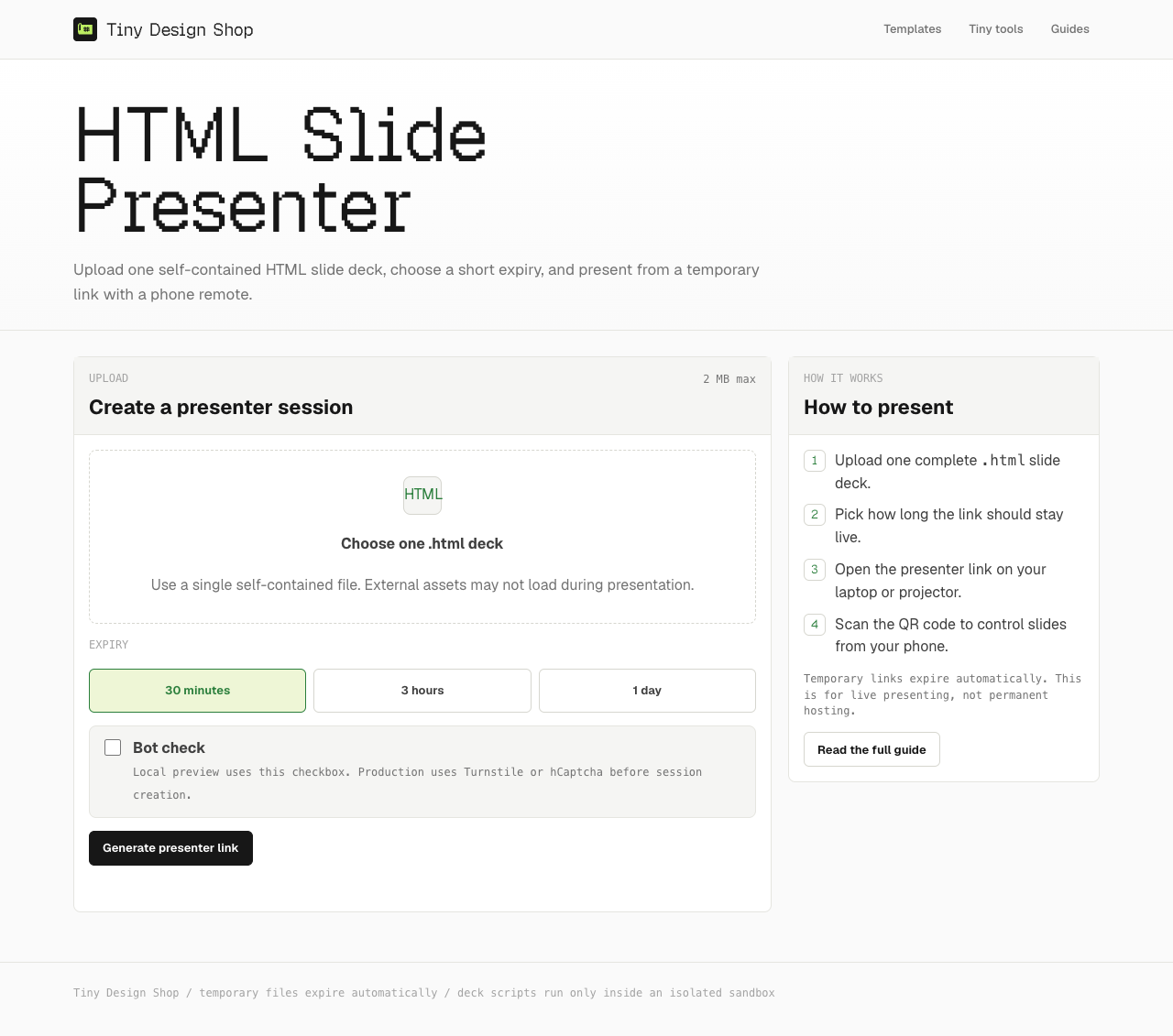
HTML Slide Presenter takes one self-contained .html or .htm file below 2 MB. Keep essential styles, scripts, and images inside the file. It presents your HTML rather than rebuilding it in another slide format.
Upload a file, not a hosted URL. PowerPoint, Keynote, PDF, ZIP archives, folders, and native Canva or Figma Slides files are not supported uploads. Single-file decks using .slide or data-slide markup are the most straightforward starting point; rehearse custom navigation before a live talk.
Download the example deck if you want to try the full workflow first. The portable skill can create or adapt a deck with embedded notes.
Create the presenter and remote links
- Open HTML Slide Presenter and choose your HTML file.
- Pick an expiry: 30 minutes, 3 hours, or 1 day. Include rehearsal and questions.
- Complete the bot check, then generate the presenter link.
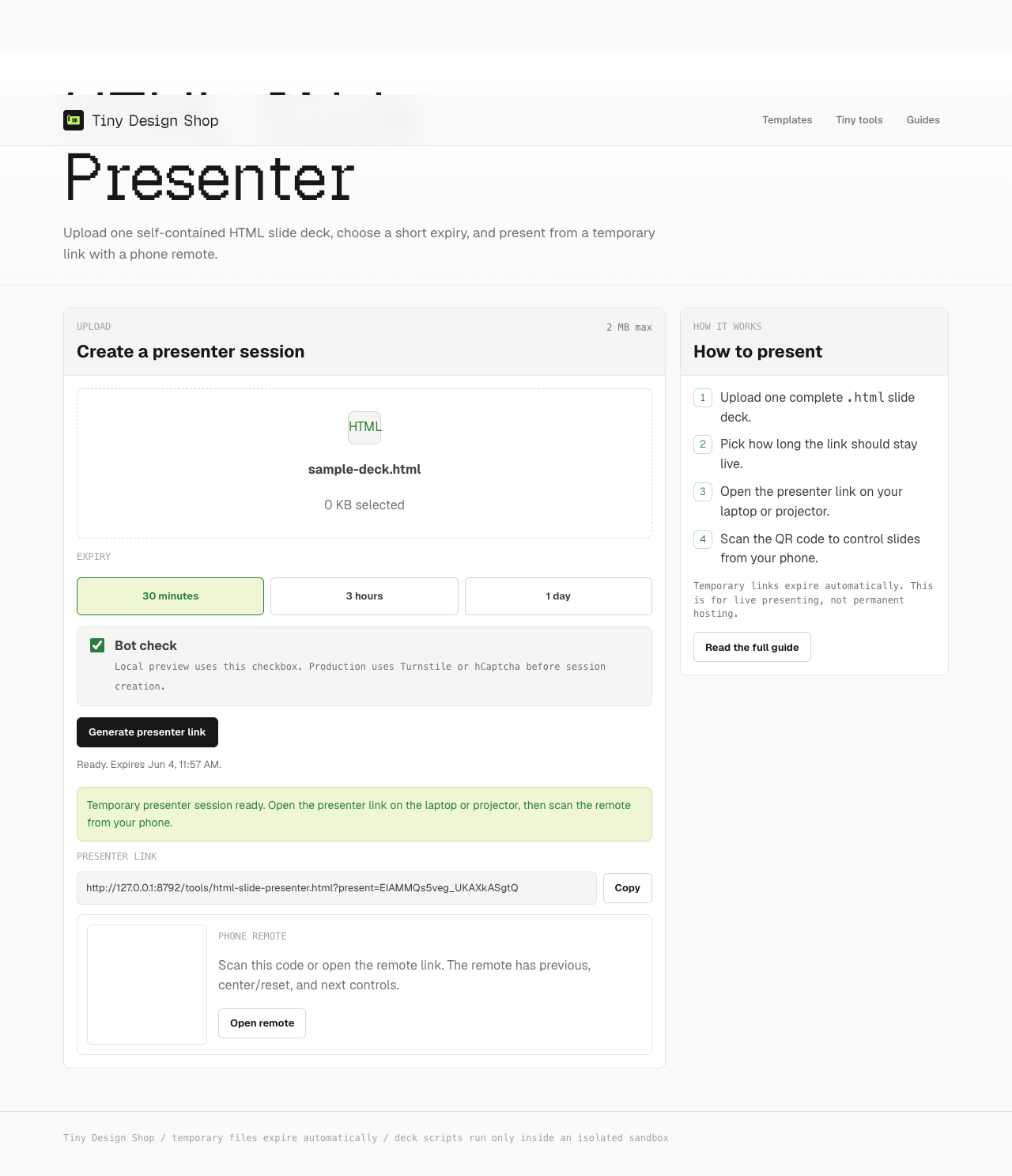
- Open the presenter link on the laptop or projector display.
- Scan the QR code with your phone to open that session’s remote.
Check the display controls
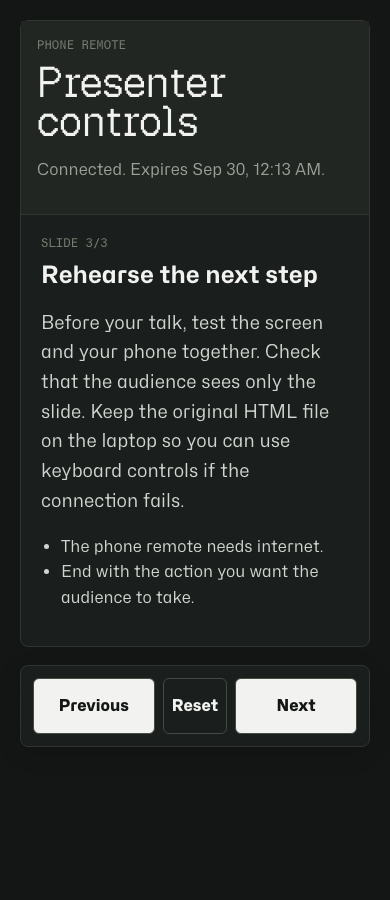
Use previous, reset, and next in the small control overlay, or the left and right arrow keys. Keep this presenter tab open: the phone sends commands to it. Test the first, middle, and final slides before you begin.
Use the phone controls and notes
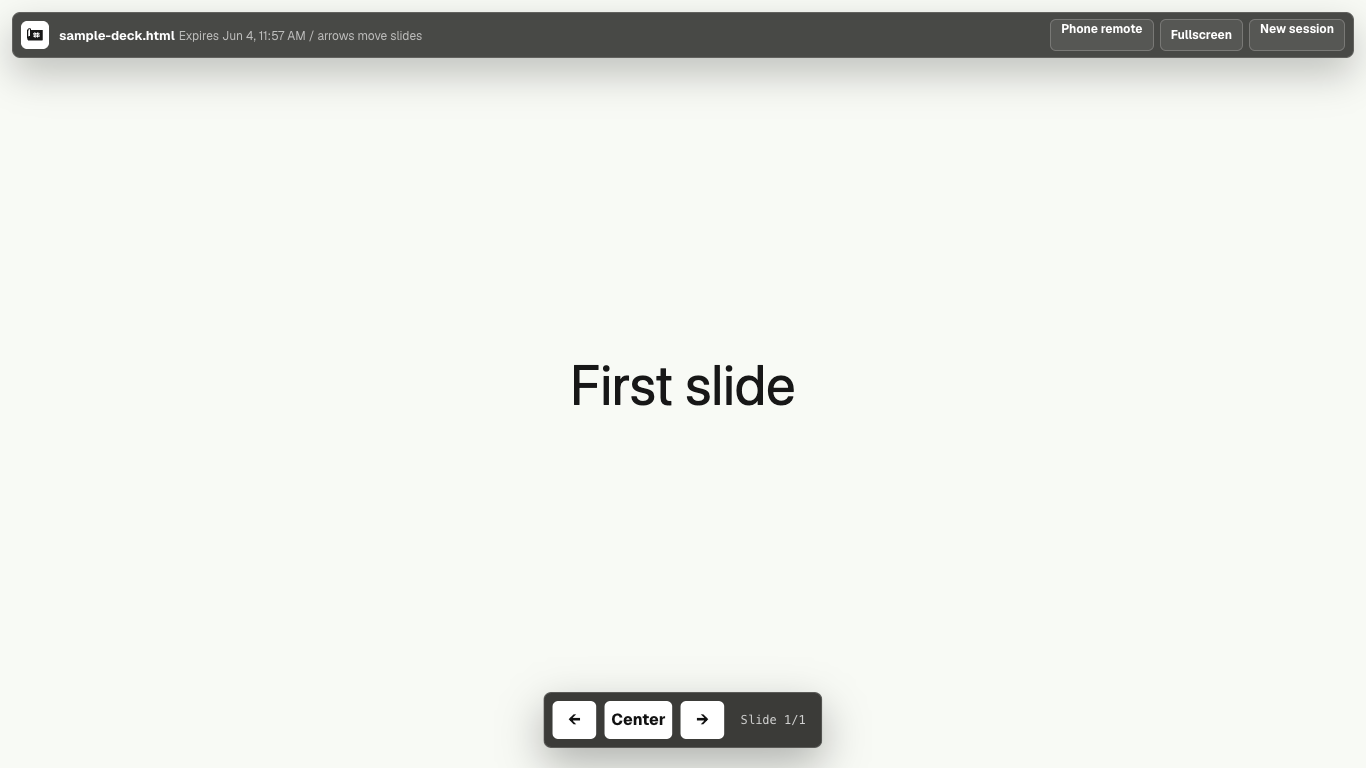
The remote controls the temporary session it was created for. Use previous and next to move slides; reset returns to the start. When supported notes are embedded, the phone shows the title, speaking text, and bullets for the confirmed active slide.
Check that the displayed slide number and notes agree after a change from either device. Missing notes do not prevent navigation. See how to prepare and read speaker notes for the formats and troubleshooting.
Keep the phone awake and both devices connected to the internet. When the remote is waiting or disconnected, restore the presenter connection before trusting the notes as current.
If something looks wrong
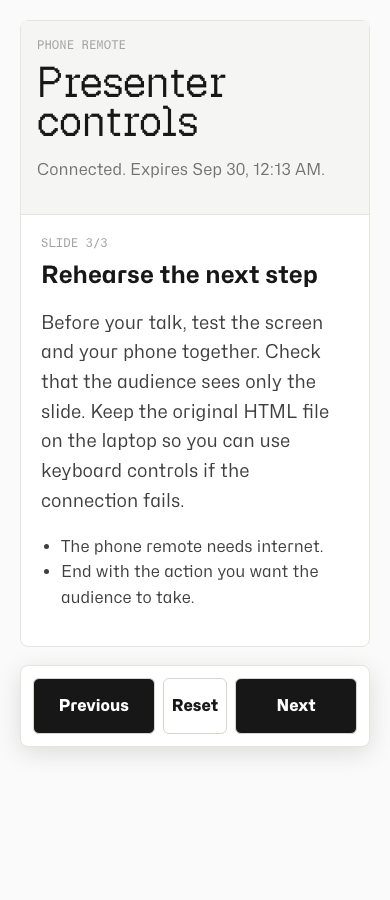
- File rejected: check the actual .html/.htm format, non-empty content, and 2 MB limit.
- Missing images: embed the assets instead of referring to another local folder.
- Remote not moving slides: keep the presenter tab open, check both connections, then try a display arrow key.
- Slides move but notes are missing: confirm that the file contains supported notes inside each slide.
- Custom deck out of sync: rehearse with the provided example to distinguish pairing problems from unsupported deck behavior.
- Expired link: upload the deck again and use the new presenter and remote links.
Temporary uploads and access links
The presenter and remote stop working after the selected expiry. Keep the original HTML file so you can create another session or present locally with its keyboard controls.
Your deck is uploaded for this session and runs inside an isolated presentation frame. Share access links carefully. Speaker notes are embedded in the HTML file, so keeping them off the audience screen does not make them confidential.
No Tiny Design Shop account, app installation, or subscription is needed. For a live event, use the conference rehearsal checklist.