Confirm the conference accepts your setup
You can present at a conference without PowerPoint when the organizer allows browser-based slides. A self-contained HTML deck can run on your laptop; Tiny Design Shop adds online phone controls and embedded notes. Confirm the room’s requirements before relying on this workflow, especially when all speakers must submit one standard file format.
- Will you use your laptop or an organizer-provided computer? Can it open an HTML file and the presenter website?
- Does the event require PowerPoint or PDF in advance? If so, arrange an accepted version separately.
- Which display connection, aspect ratio, audio connection, and browser are available?
- Can both laptop and phone reach the internet? Rehearse any venue login or captive portal before the talk.
Prepare a deck that travels well
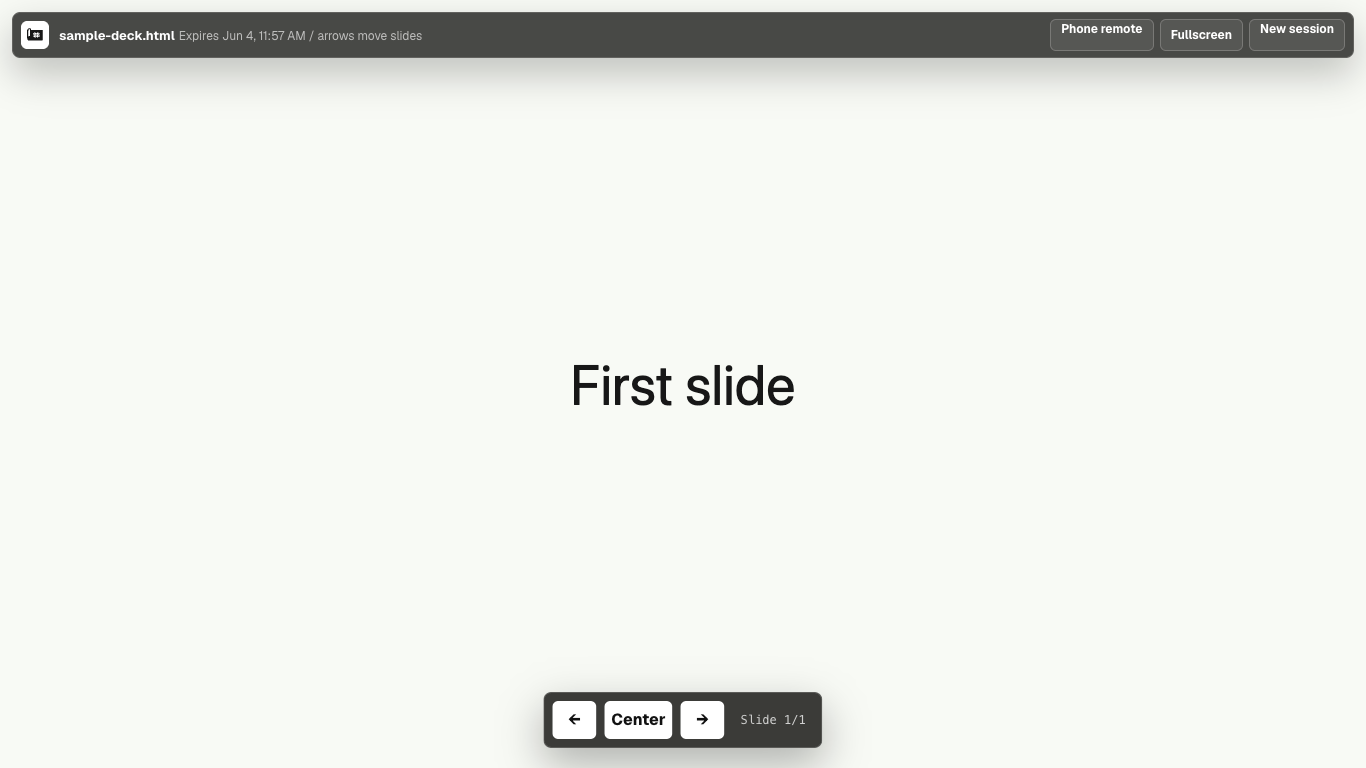
Keep the important images, styles, and navigation inside one HTML file below 2 MB. Use large text and one main point per slide. Add concise speaking notes before uploading; the presenter imports them rather than providing a notes editor. Start with the example deck or create your own with AI.
Open the actual downloaded file at the expected display size. Check the first and final slides, embedded media, animations, contrast, and slide navigation. A successful AI preview does not verify the conference setup.
Rehearse the display and phone together
- Connect the display and open the presenter on the audience screen. Enter browser fullscreen.
- Pair the phone and advance through several slides, checking that notes follow the displayed slide.
- Keep the presenter tab open and the phone awake. Check battery levels and connect power where possible.
- Hide device notifications and check what appears on the audience display before attendees arrive.
Choose a session that covers the whole event
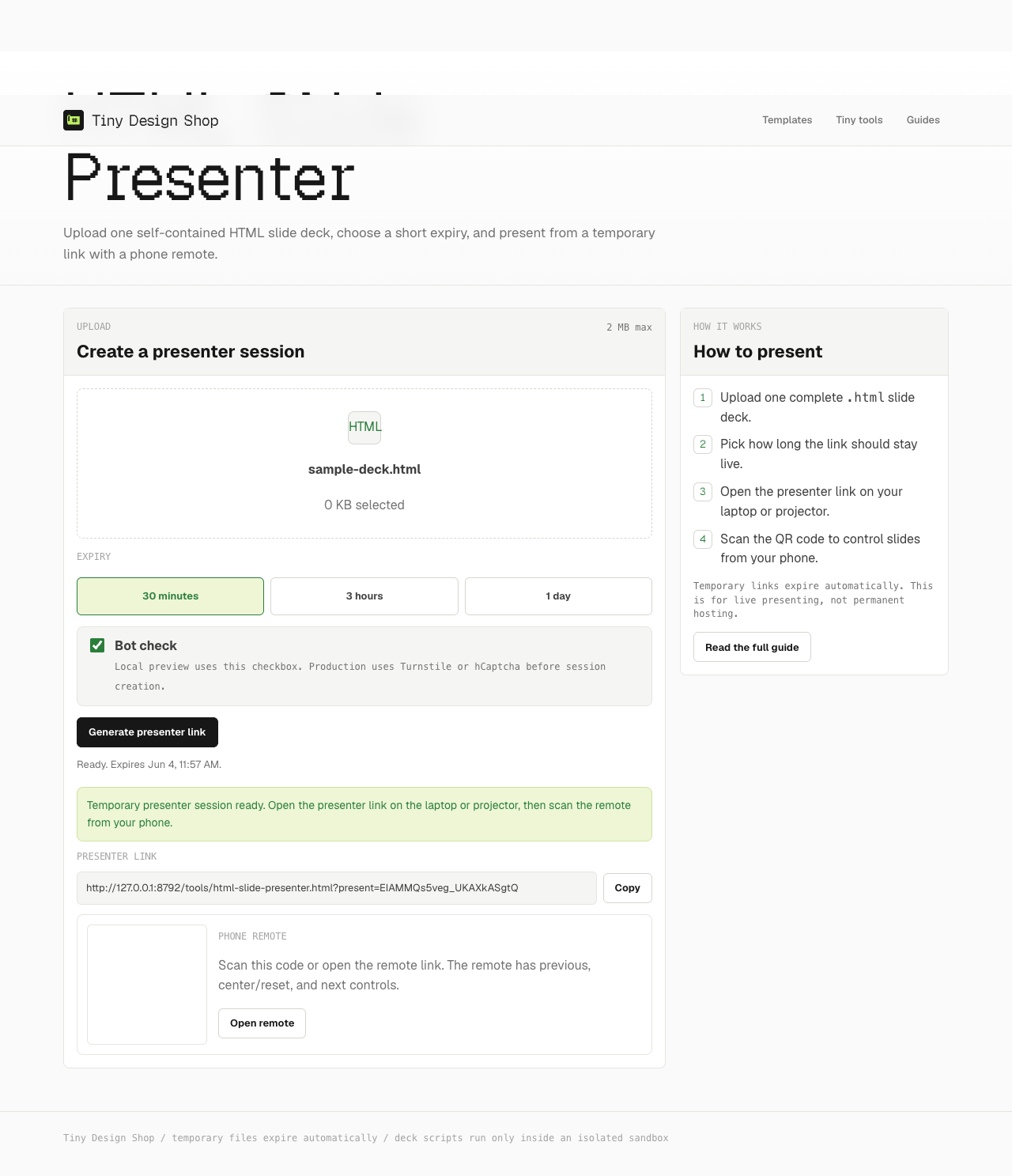
Create the session close enough to the talk that its expiry covers setup, your presentation, and questions. The choices are 30 minutes, 3 hours, or 1 day. The phone setup guide shows the upload and QR pairing steps.
For a 40-minute talk with a 20-minute sound check, 30 minutes is too short. A three-hour session gives more room if the event is on schedule; a longer delay may require a new session. Expiry is not extended simply by leaving the tab open.
Keep a tested local backup
Save the original self-contained HTML file on the presentation laptop. Before the event, disconnect networking, reopen the file, and use its keyboard controls. Keep a separate copy of your speaking notes available for this fallback.
- If the phone disconnects but the online slides still work, use the display’s controls while you restore the connection.
- If online presenting becomes unavailable, open the local HTML file and continue with its keyboard navigation.
- If the session expires, create a new one only when there is time to pair and check it; otherwise use the local backup.
The local file fallback does not preserve the hosted phone remote or phone notes. If your talk requires reliable offline presenter features, choose and rehearse an offline-capable application instead.
Before you walk on stage
- Venue and required submission format confirmed.
- Deck and notes reviewed; local offline backup tested.
- Display, fullscreen, sound, and navigation rehearsed.
- Phone paired, connected, charged, and showing the correct slide’s notes.
- Session expiry covers the talk and questions.
- Notifications silenced; backup notes and keyboard controls within reach.