What are HTML slides?
HTML slides are a presentation saved as a web page. A self-contained deck keeps its layout, images, and navigation in one file that opens in a browser. You can create it with AI and present it without rebuilding the slides in PowerPoint, Canva, or Figma Slides.
Ask for one .html file, not a folder, React project, hosted preview link, or PowerPoint export. The browser displays the slides; HTML Slide Presenter adds temporary hosting, phone controls, and imported speaker notes.
Create a deck from your material
Decide who is listening, what they should learn, and how long you have. Supply the facts and examples you want to use. For a five-minute talk, start with three slides: the problem, one useful example, and the next step.
Create a self-contained HTML slide deck for [audience] about [topic].
Talk length: [minutes]. Use only the facts in my source material below.
Use a clear 16:9 layout, readable text, inline CSS/JavaScript and embedded assets.
Use section.slide for each slide, with exactly one .active slide at a time.
Include previous/next buttons, ArrowLeft/ArrowRight and Home navigation.
Inside each slide, add a script type="application/json" class="slide-notes"
with title, script (speaking text), and notes (an array of short bullet strings).
Hide notes from the slide. Keep the complete file below 2 MB.
No frameworks, external fonts, remote images, API calls or build step.
Give me the complete deck.html file, not just an outline.
Source material: [paste your content]
Follow the specific walkthrough for Claude or ChatGPT. The HTML Slide Presenter skill adds a reusable starter and validation instructions for compatible tools; ordinary chats can use the prompt.
Try a small working example
Download the three-slide example, open it in your browser, and try the left/right arrow keys. It includes a short speaking script and supporting bullets for each slide. Save a copy before adapting the words and visuals.
For an existing deck, ask the AI to preserve the content and design while embedding missing assets and adding notes. Review its changes: a file can look correct in the AI preview yet depend on files that were never downloaded.
Check the file before uploading
- Open the downloaded file locally and visit every slide. Check text, contrast, images, and the first and last navigation steps.
- Disconnect networking and reopen it. Essential content should still appear if the deck is self-contained.
- Keep the file below 2 MB. Compress oversized images or replace decorative imagery with simple shapes.
- Check facts and speaker notes yourself; generated content can contain unsupported claims.
Choose how to present
| Method | Best for | What to know |
|---|---|---|
| Local browser | A simple offline talk | Use the deck’s keyboard controls; no hosted phone remote. |
| HTML Slide Presenter | A temporary session with phone controls and notes | Free, no account or app; internet needed for phone synchronization. |
| HTMLSlides | An installed presenter with a laptop notes view | Its desktop app advertises offline and dual-display presenting. |
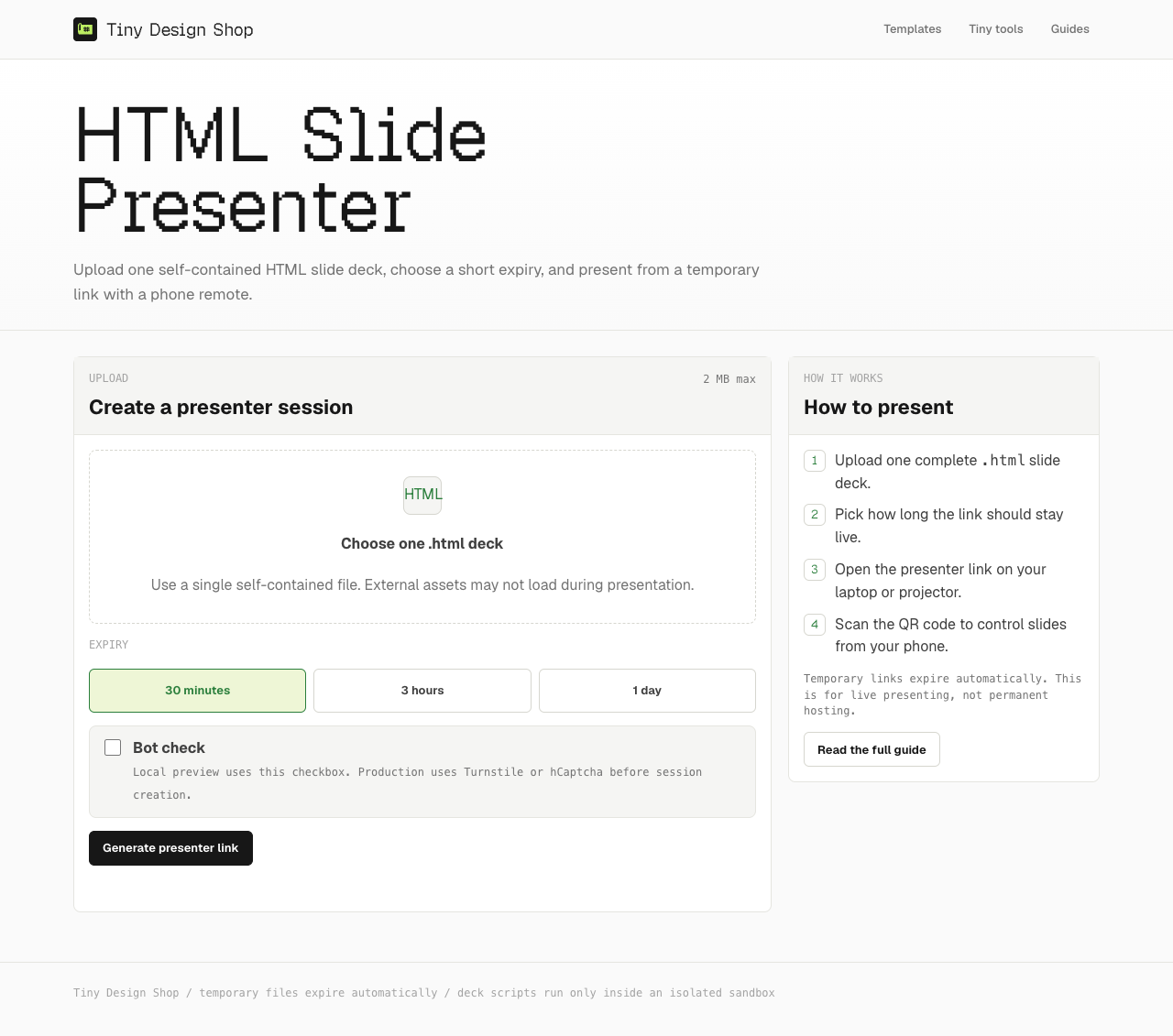
For the phone workflow, open HTML Slide Presenter, upload the file, select 30 minutes, 3 hours, or 1 day, and complete the bot check. Open the presenter link on the display and the QR remote on your phone. See the setup guide.
What is free, and what needs internet?
Tiny Design Shop requires no presentation subscription, app installation, or account. Your AI tool has separate access rules and usage limits; this does not promise unlimited free slide generation.
The deck is uploaded for a temporary session. The phone remote needs internet and an open presenter tab. Keep a local backup for the slides; it will not preserve phone synchronization. For a live event, use the conference checklist.