Notes follow the slide on the display
HTML Slide Presenter can read notes embedded in each slide and show them on the connected phone remote. The phone follows the confirmed active slide, including changes made from the display. Prepare the notes in your HTML file before upload; the presenter imports them and does not include a notes editor.
This separates the reading surface from the audience screen, not the underlying data. The notes remain in the uploaded HTML file and must not be treated as confidential storage.
Add notes with your AI tool
Use the HTML Slide Presenter skill or ask your AI tool to adapt an existing deck with this instruction. Keep a copy of the original before making changes.
Preserve this HTML deck’s slides, visual design, and navigation. Inside each section.slide, add a script type="application/json" class="slide-notes" containing title, script, and notes (an array of strings). Write 2–3 sentences of speaking text and 2 short reminders per slide using only the supplied content. Keep notes hidden on the audience slide and return one complete HTML file.Read the notes aloud. Shorten phrases that are hard to scan, and remove invented examples or figures. Speaking text should help you explain the slide rather than repeat every word on it.
Supported notes formats
Place this JSON block inside the slide it belongs to. The title identifies the slide, script holds the speaking text, and notes holds short reminders. JSON field names stay in English; the content can use your language.
<script type="application/json" class="slide-notes">
{"title":"One useful next step","script":"Start with the smallest change we can test this week.","notes":["Pause for questions","Name the owner"]}
</script>
Plain-text <aside class="notes"> inside the slide is also accepted. Hide it in the deck’s own styles so it stays out of the audience view when you open the HTML locally. If both formats exist, valid JSON takes priority.
See the format reference for the complete requirements, or download the notes-enabled example.
Pair the phone and confirm the notes
- Upload the deck, choose expiry, and create the session.
- Open the presenter on the display, then scan the phone-remote QR.
- Confirm the phone shows the notes for the visible slide.
- Advance from the phone, then use a display arrow key; confirm the notes follow both changes.
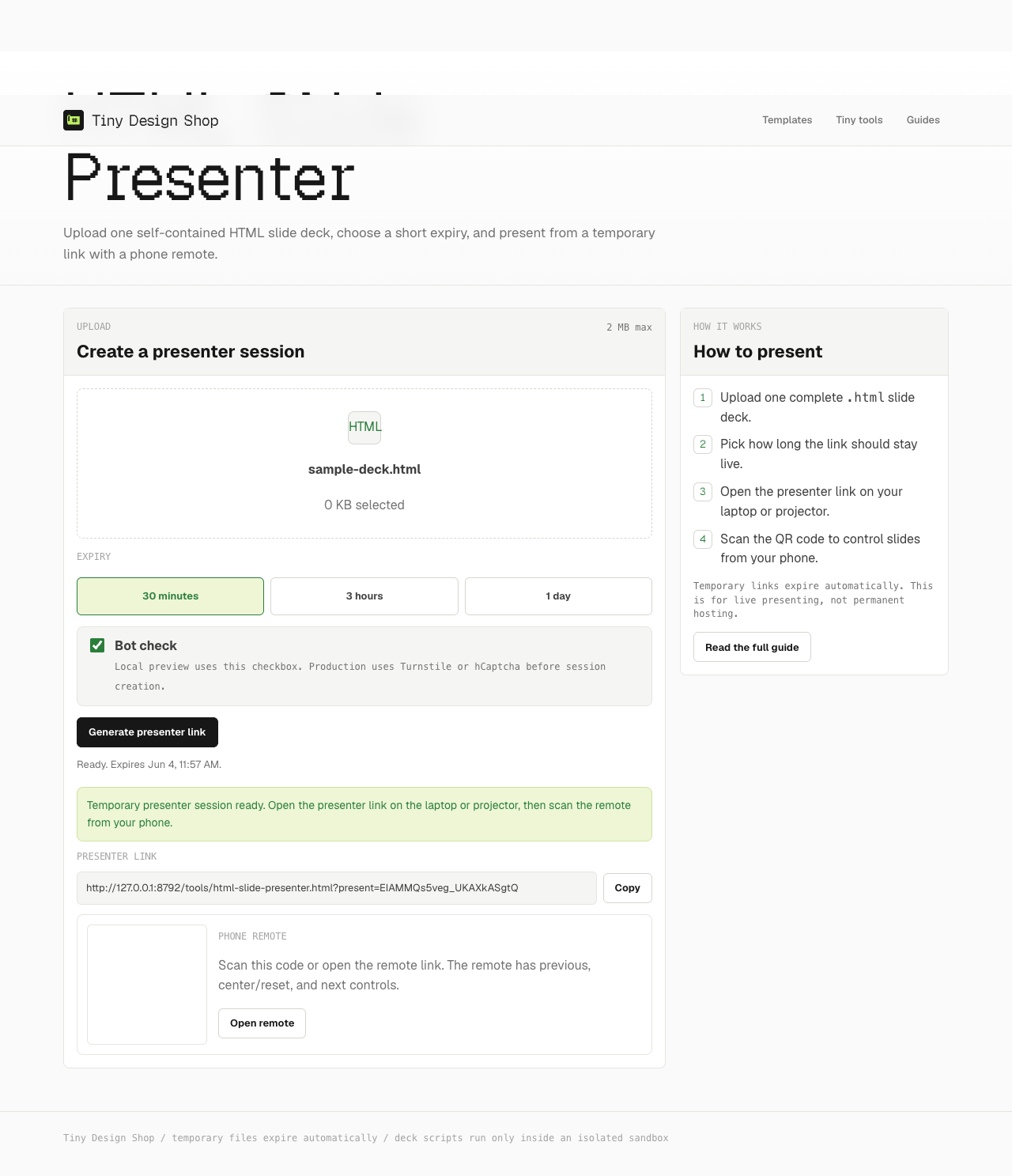
The remote setup guide covers upload and controls in detail. Both devices need internet, and the presenter tab must stay open.
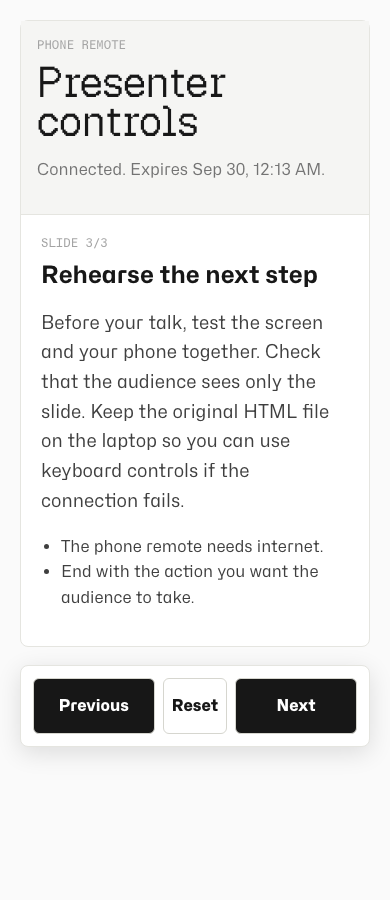
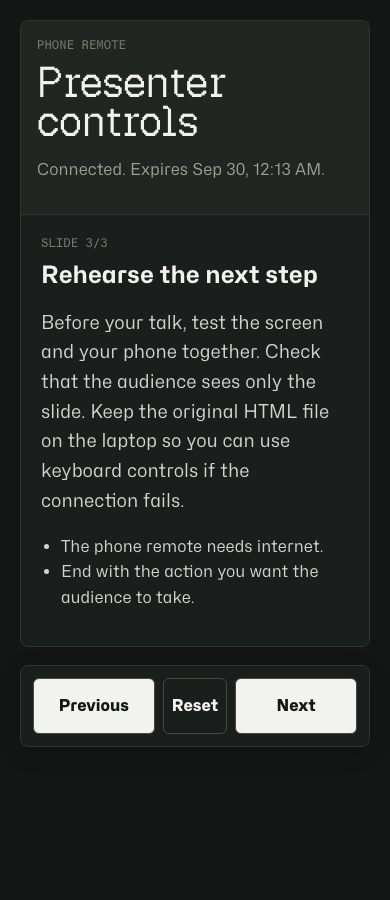
Missing, stale, or unreadable notes
- No notes on one slide: check that its note block is inside the slide and includes text. Empty notes do not disable navigation.
- Malformed JSON: ask your AI tool to repair the syntax without changing the slide. Do not paste a JavaScript object with comments or trailing commas as JSON.
- Notes lag or show a waiting state: check the presenter tab and connection. Do not assume a tap has changed the audience slide until the state is confirmed.
- Long notes: shorten the speaking text and keep supporting points brief; leave room to reach the controls.
- Expired session: upload again and pair with the new QR.
Revise before the next presentation
Edit the source HTML or ask your AI tool to revise only the notes, then save and upload the complete file again. An existing session does not automatically pick up changes to a local file.
For a conference, keep separate backup notes alongside the locally saved deck. Offline local slides do not synchronize with this phone remote. Follow the conference checklist to rehearse that fallback.