Do not copy text out of a styled PDF.
Markdown to PDF styled exports use your browser print engine. The PDF looks correct on screen, but the text layer is stored as thousands of positioned fragments — not flowing paragraphs.
When you copy from that PDF, viewers often insert hard line breaks at every visual wrap, drop spaces between lines (only onthe), or split words mid-line. ATS parsers that read PDF text hit the same problems.
Use styled PDF only for portfolio attachments and email. For job applications, export plain text or an ATS PDF instead. See the export comparison for a full table.
Three exports, three jobs.
- Copy plain text or Download .txt — best for ATS paste fields, Greenhouse/Lever text boxes, and LinkedIn role descriptions you paste by hand.
- Download ATS PDF — when the application form requires a PDF file but still parses text inside it. Flowing text layer, not browser print.
- Download styled PDF — when you need the themed preview as a shareable attachment. Not for ATS copy/paste or upload parsing.
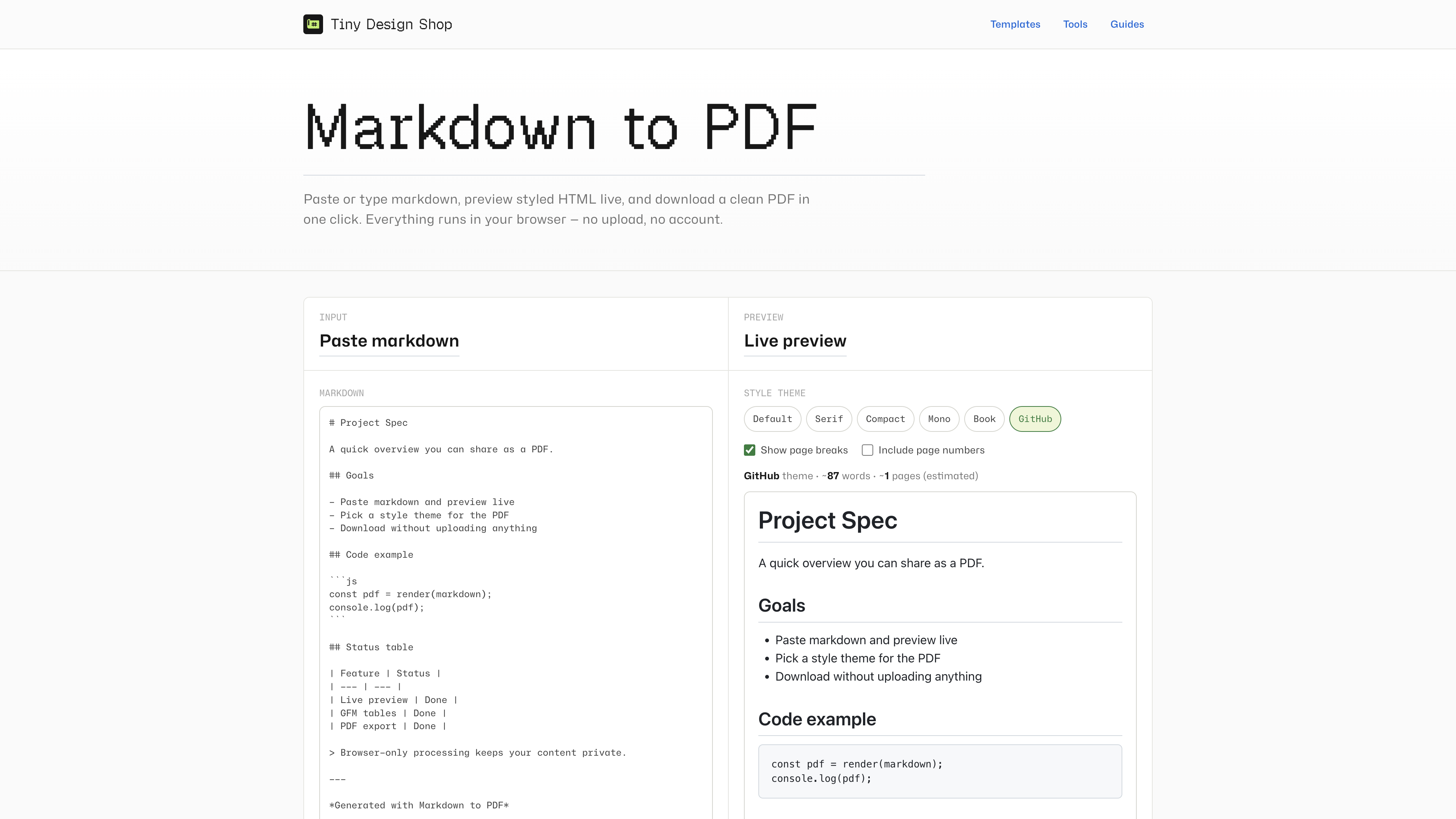
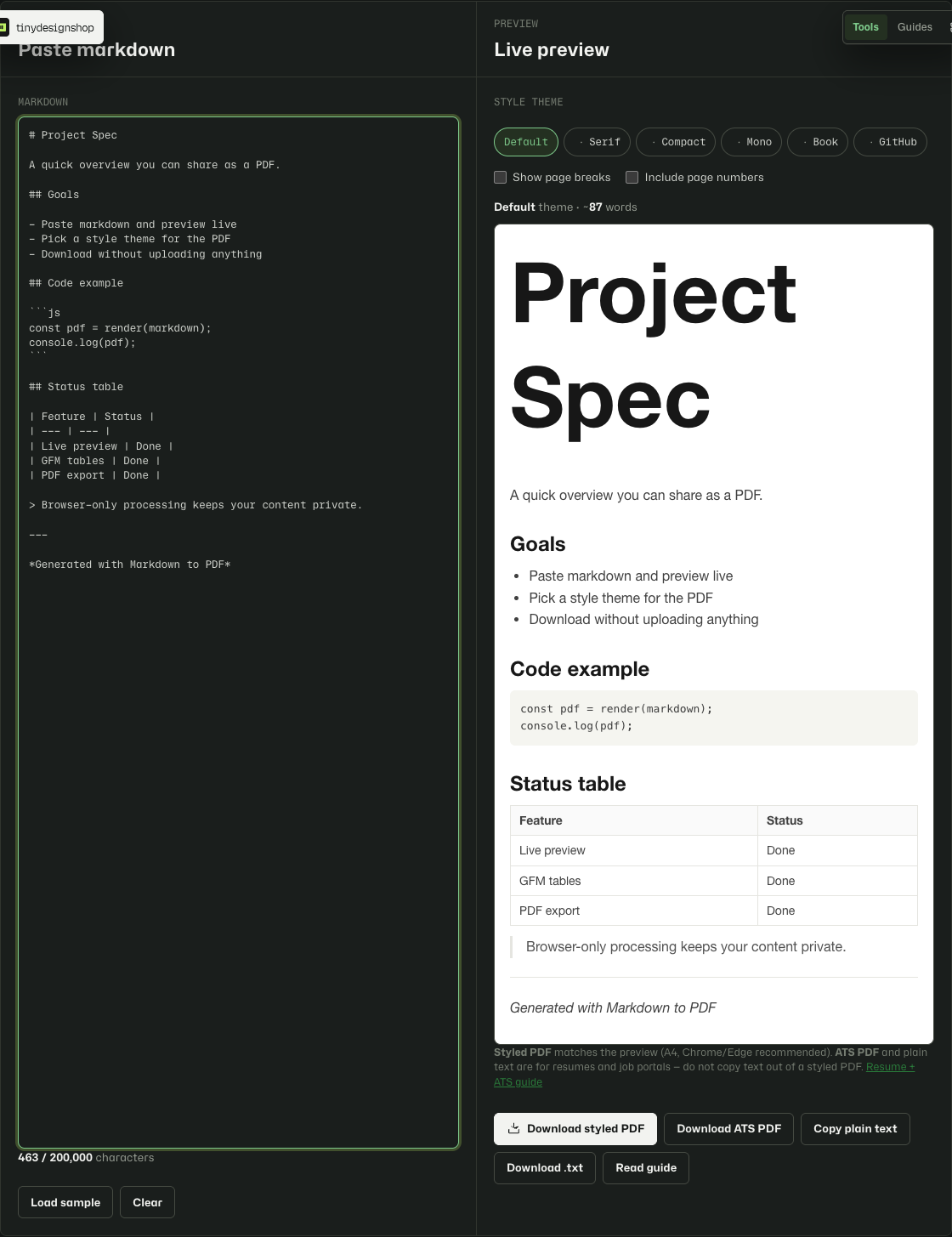
Export for an ATS application.
- Open Markdown to PDF and paste your resume markdown.
- Skim the live preview — headings, lists, and links should match what you expect.
- For a paste field: click Copy plain text and paste into the application. Or click Download .txt and upload/open the file.
- For a required PDF upload: click Download ATS PDF and attach that file — not the styled PDF from the print dialog.
- Keep Download styled PDF for recruiters, portfolios, or email attachments where looks matter more than parsing.
Write resume markdown that exports cleanly.
- Use
#for your name and##for section headings — they become clear blocks in plain text. - Use bullet lists for experience bullets; avoid hard line breaks mid-sentence inside a bullet.
- Write links as
[label](https://…)— plain text export keeps the URL in parentheses. - Pick the Compact theme before ATS PDF if you need tighter spacing on paper — styled PDF themes do not affect plain text.