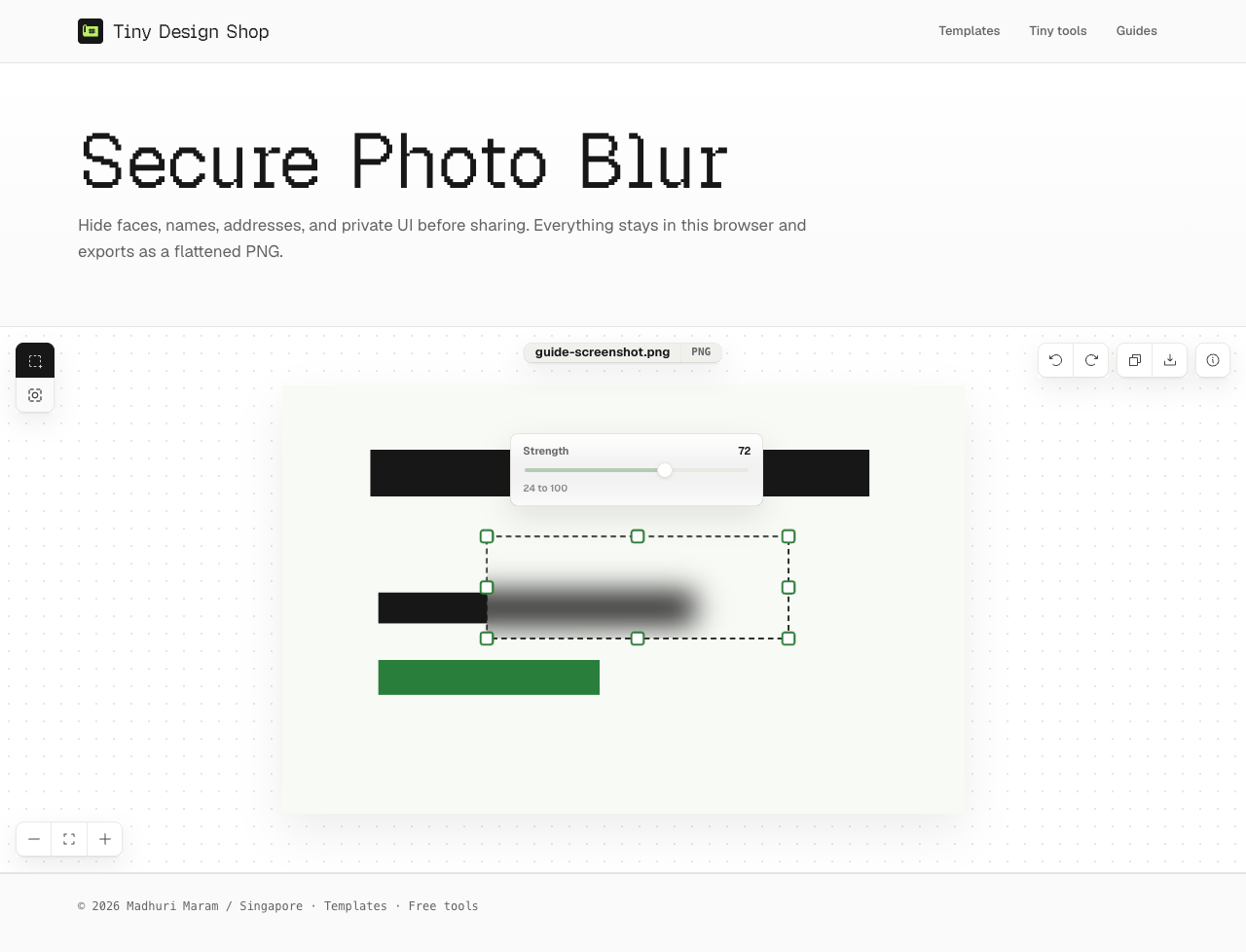
What is the best free alternative for redacting a screenshot?
If you only need to hide faces, text, passwords, or addresses before sharing an image, you do not need a paid editor or a subscription. Secure Photo Blur does it free in the browser: the image is processed locally on your device, the blur is baked into the exported pixels, and nothing is uploaded to a server. There is no account, no install, and no watermark on the result.
Secure Photo Blur vs. common redaction options.
Most ways people blur a screenshot fall into three buckets: heavyweight desktop editors, online upload-based blur sites, and built-in phone markup. Each has a trade-off. This table is about fit, not winning — pick the row that matches your job.
| Option | Cost | Upload required | Account / install | Best for |
|---|---|---|---|---|
| Secure Photo Blur | Free | No — processed in your browser | None | Fast, private one-off redaction of screenshots and photos |
| Desktop photo editors | Paid or subscription | No | Install required | Full image editing when you already own the software |
| Online blur sites | Often free with limits | Yes — image sent to a server | Sometimes an account | Quick edits when privacy of the image is not a concern |
| Phone markup tools | Free, built in | No | None | Rough cover-ups on the device that took the screenshot |
Why no-upload redaction is safer.
The detail you are blurring is usually the most sensitive part of the image — a password, an account number, a face, a home address. Online blur tools that upload the file send that exact detail to a third-party server before it is hidden. Secure Photo Blur avoids that step entirely: the blur happens in the browser canvas, and the copied or downloaded file is flattened from that canvas, so the hidden pixels are gone from the export rather than masked over.
What the free tool actually does.
- Rectangle blur for text blocks, addresses, and interface details.
- Circle blur for faces, profile photos, and round objects.
- Adjustable blur strength per region, with move, resize, and undo.
- Works with
.png,.jpg,.jpeg, and.webpfiles, plus clipboard paste. - Copy a flattened PNG to the clipboard, or download it with the blur baked in.
- No sign-up, no install, and no watermark on the exported image.
When a different tool fits better.
Secure Photo Blur is built for redaction, not full editing. Reach for a dedicated editor if you need to retouch, recolor, or composite an image, work across many files at once, or edit formats it does not open — PDFs, HEIC, SVG, or video. For those, convert or export a PNG, JPG, or WebP first, then redact it here.
Redact a screenshot in under a minute.
- Open Secure Photo Blur.
- Upload, drop, or paste your screenshot or photo.
- Choose Rectangle or Circle blur.
- Drag over each face, password, address, or detail you want hidden.
- Adjust strength, then copy the flattened image or download it as a PNG.