Markdown and Slack use different syntax.
Slack uses mrkdwn, not standard markdown. Bold is one asterisk (*bold*), italic is underscore (_italic_), and links use angle brackets (<url|label>). Headings have no native equivalent — most teams bold the line instead.
Copying markdown straight into Slack leaves raw ** symbols, broken links, and headings that do not render. Converting once saves reformatting every announcement.
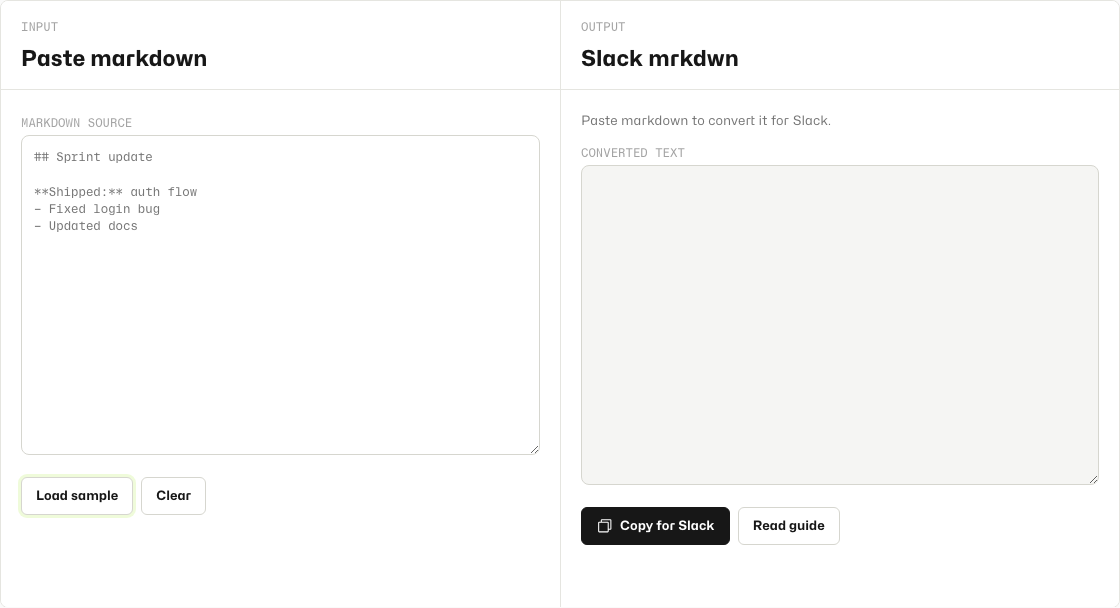
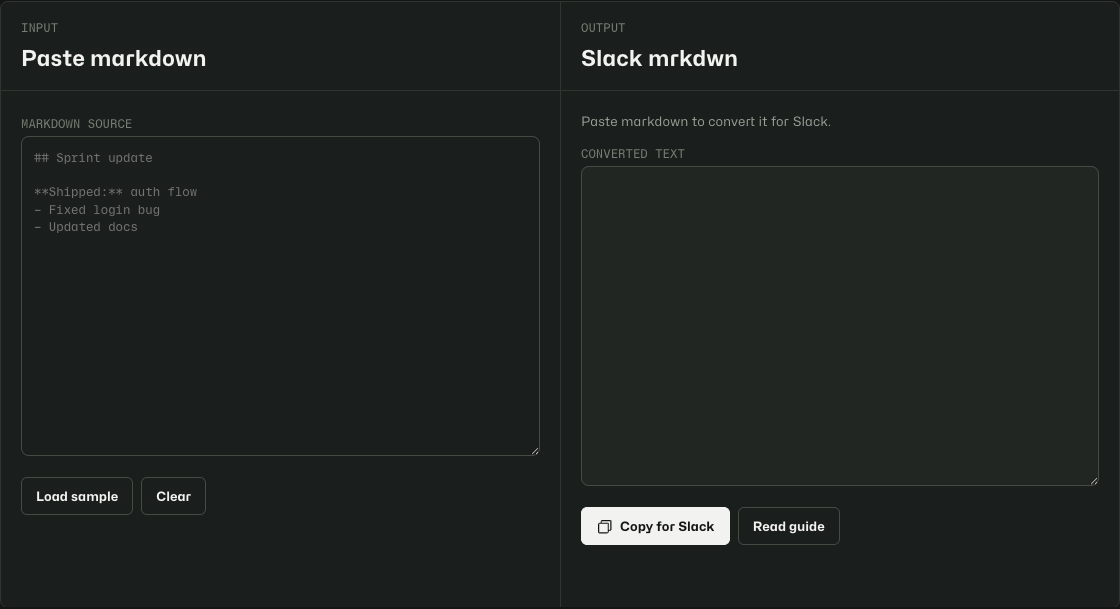
Convert and copy in under a minute.
- Open Markdown → Slack.
- Paste your markdown into the input panel.
- Review the converted mrkdwn in the output panel.
- Click Copy for Slack and paste into your Slack message or workflow template.
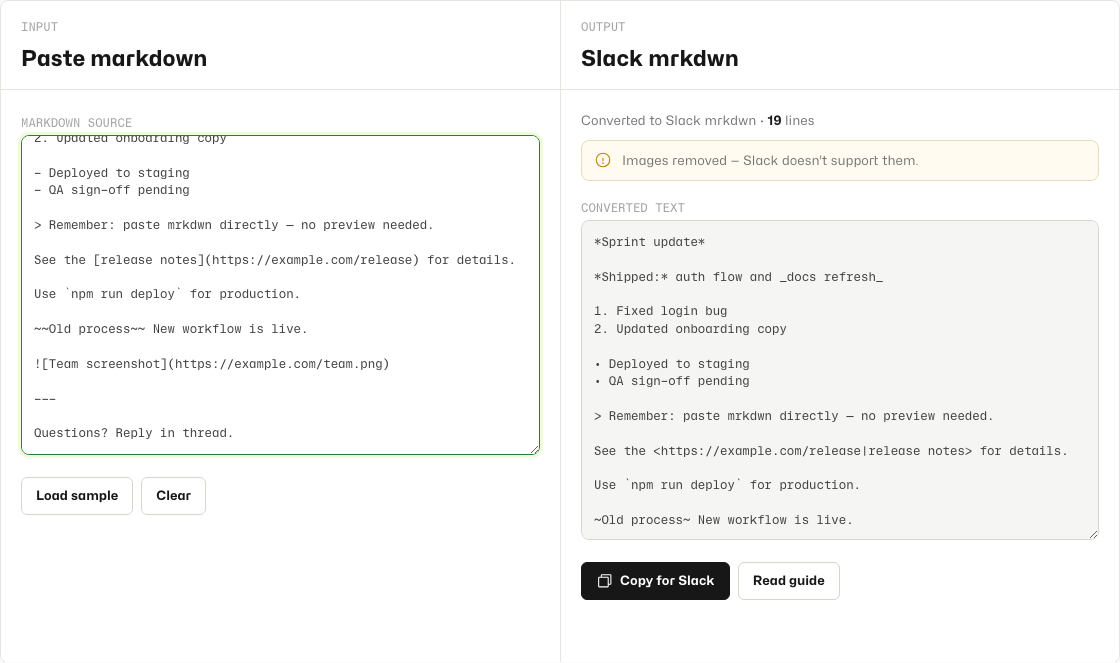
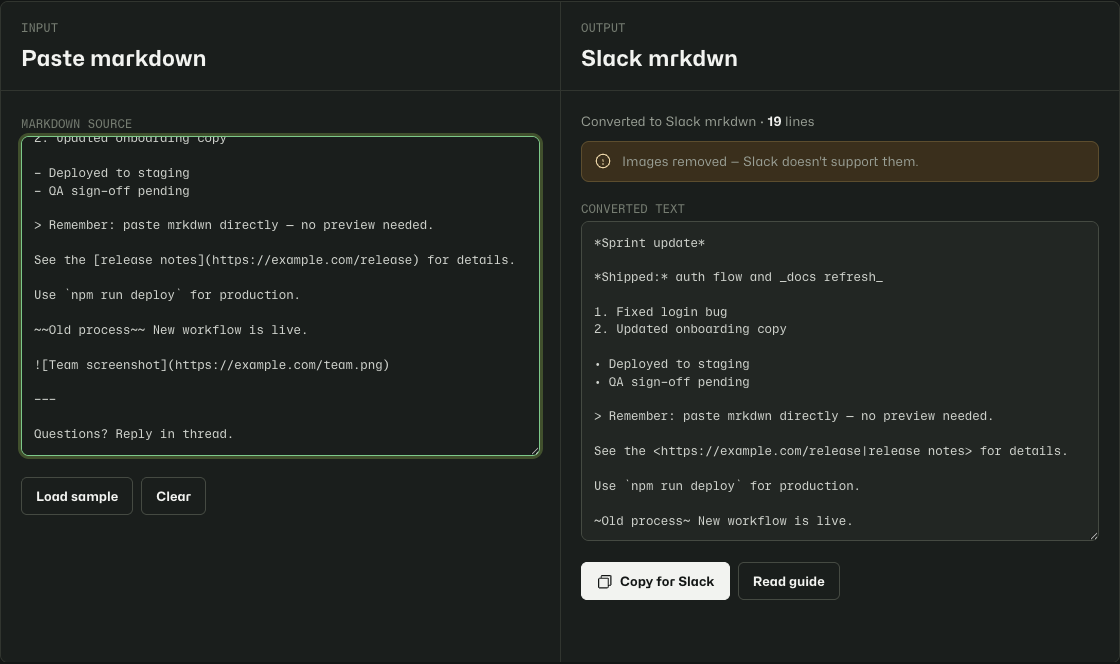
What the tool converts.
| Markdown | Slack mrkdwn |
|---|---|
**bold** or __bold__ |
*bold* |
*italic* or _italic_ |
_italic_ |
~~strike~~ |
~strike~ |
| Inline and fenced code | Unchanged — Slack renders both |
# Heading |
*Heading* (bold line) |
[text](url) |
<url|text> |
- item or * item |
• item |
1. item |
Numbered list (Slack renders natively) |
> quote |
Blockquote (Slack renders natively) |
--- |
Blank line (no horizontal rule in Slack) |
What Slack cannot render.
The tool strips elements with no Slack equivalent and shows a callout when something was removed:
- Images —
is removed. Upload images separately in Slack. - Raw HTML — tags are stripped. Slack does not parse HTML in messages.
Tables, footnotes, and complex nested markdown may not convert perfectly. For tables, consider Markdown Table Fixer first, then paste the result here if you need a plain-text version for Slack.
Browser-local only.
Your pasted markdown stays on your device. The converter does not send text to Tiny Design Shop or Slack. Your last input is saved in local storage on this browser only.