What Pattern Generator does.
Pattern Generator builds tiled geometric backgrounds from inline SVG. Choose a pattern — dots, stripes, grids, chevrons, and more — then set foreground and background colours, tile scale, and opacity.
The preview updates live as you adjust controls. When you are happy with the look, export in the format your workflow needs: a CSS background snippet, a standalone SVG tile, or a 1600×900 PNG.
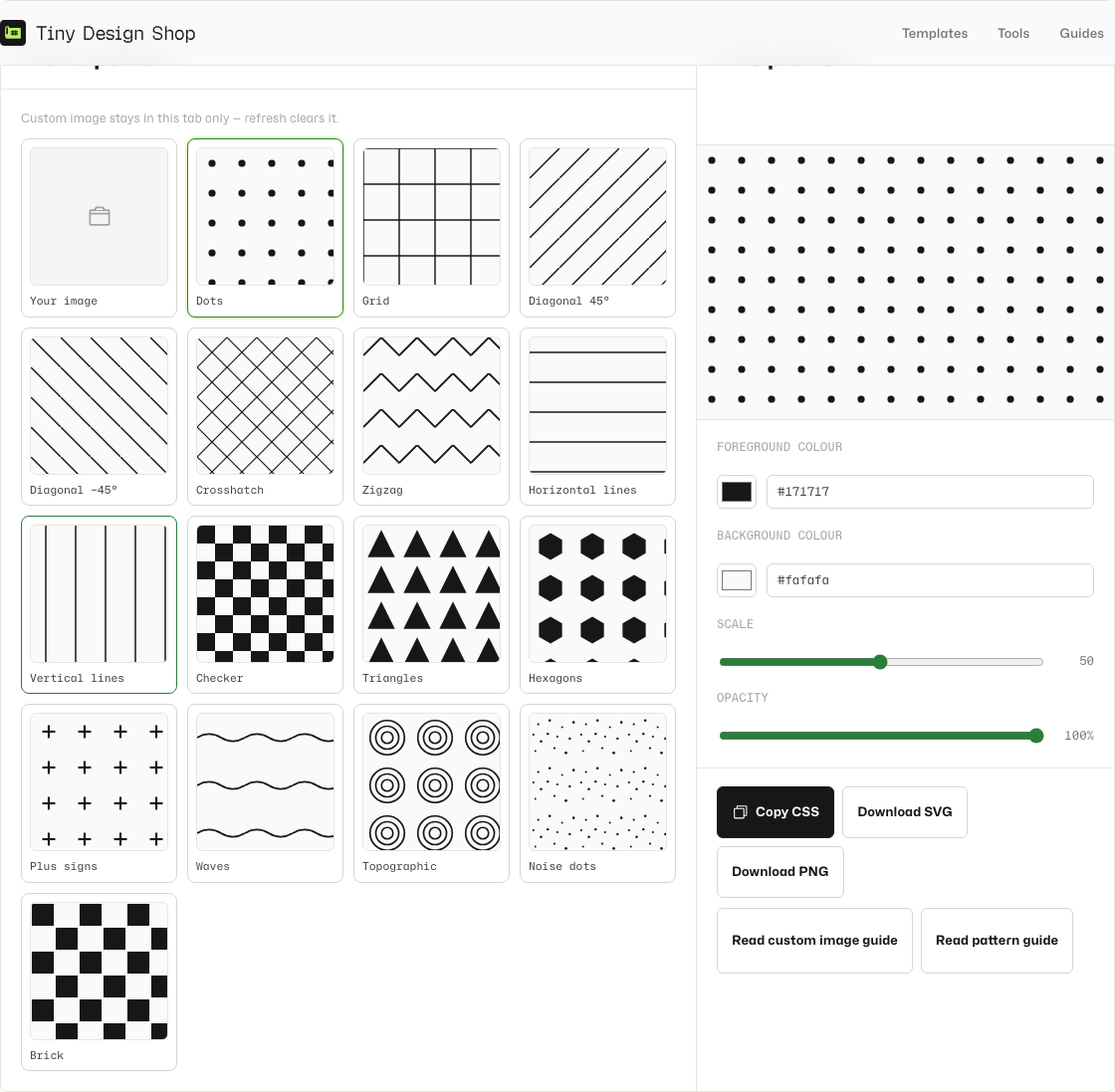
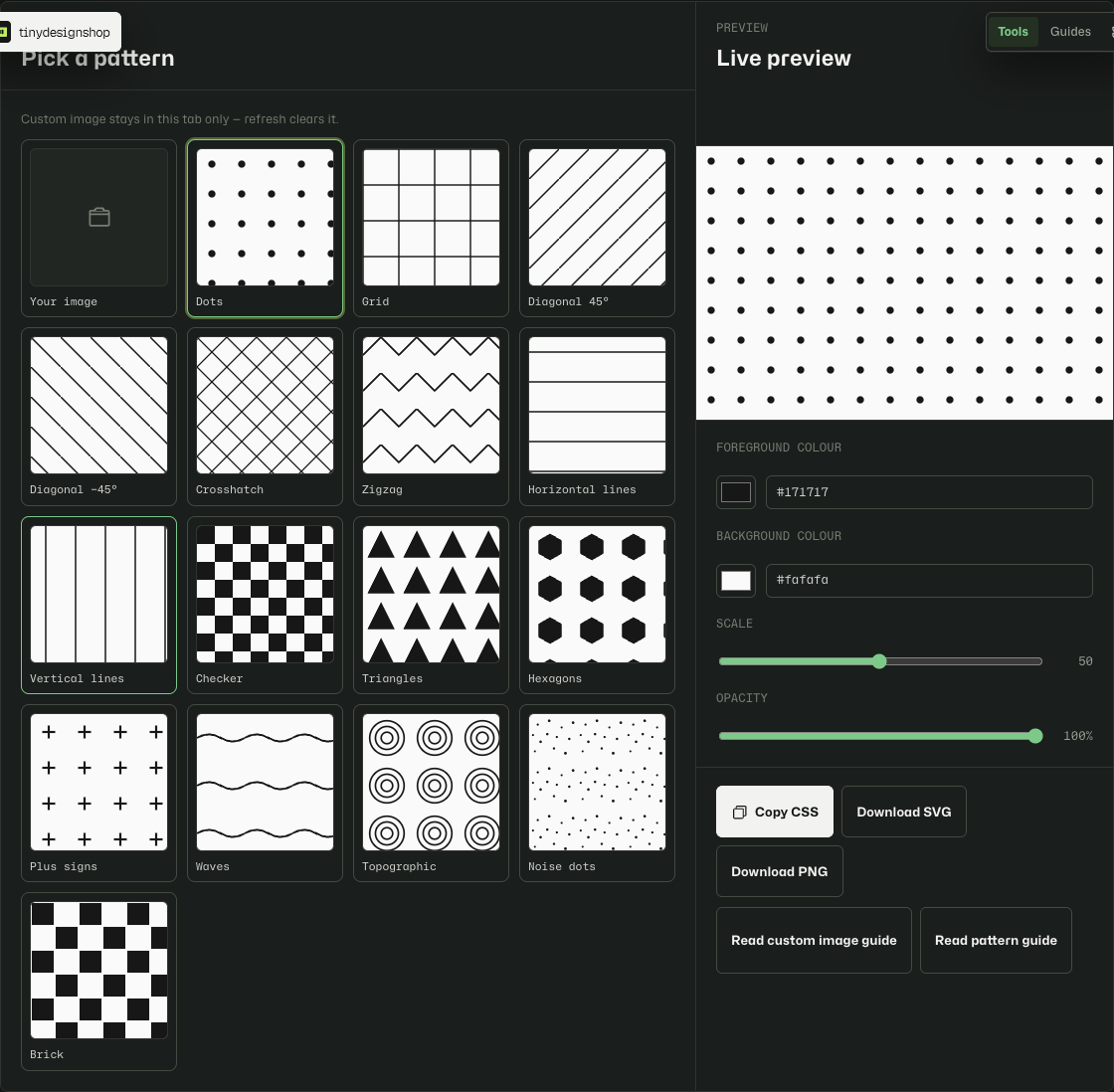
Pick, customize, and export in four steps.
- Open Pattern Generator and click a pattern tile in the picker.
- Adjust foreground and background colours, scale, and opacity until the preview matches your brand or layout.
- Click Copy CSS for a ready-to-paste background property, or use Download SVG / Download PNG for asset files.
- Drop the output into your page stylesheet, Figma file, or slide deck — no account and no upload.
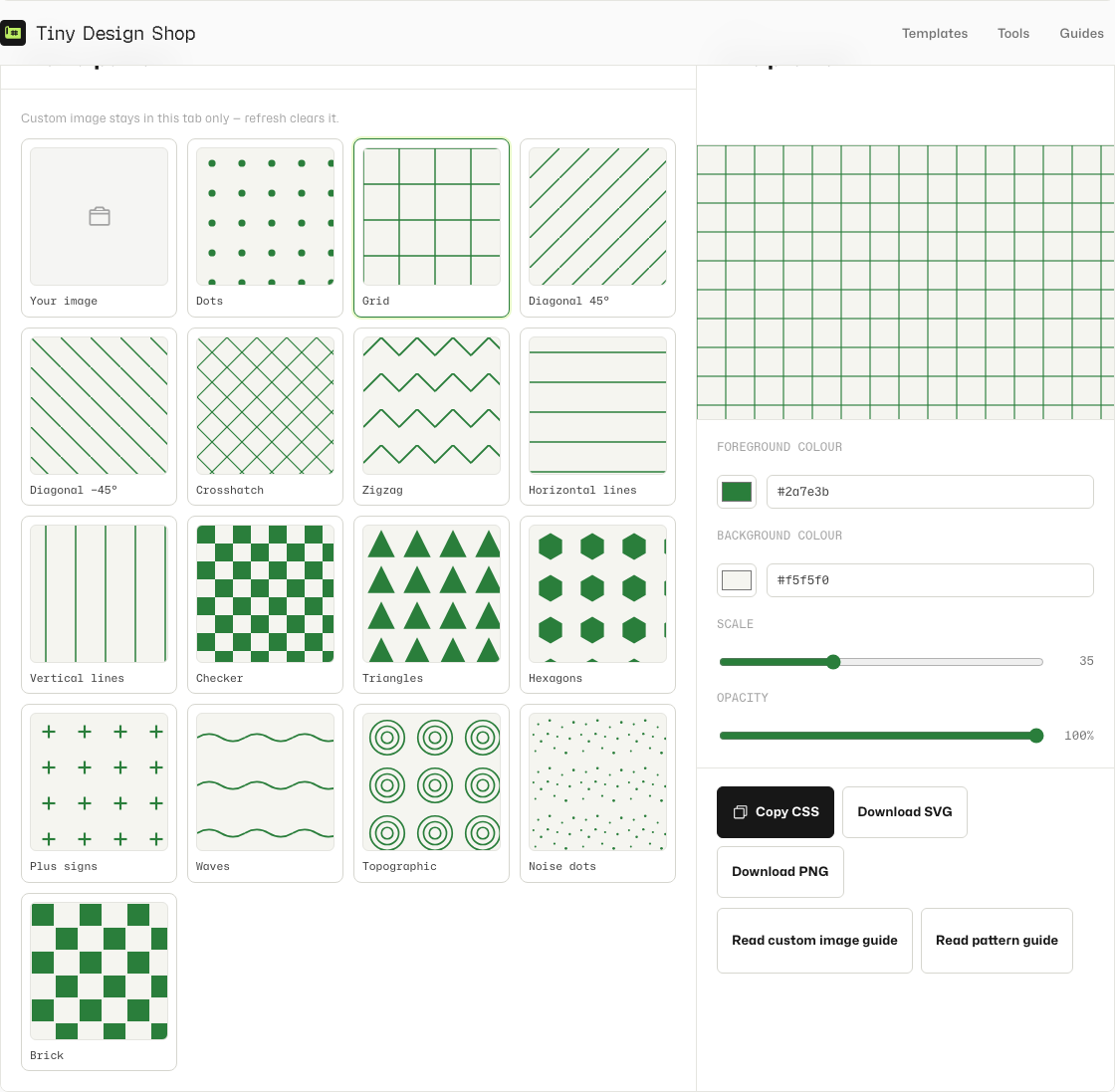
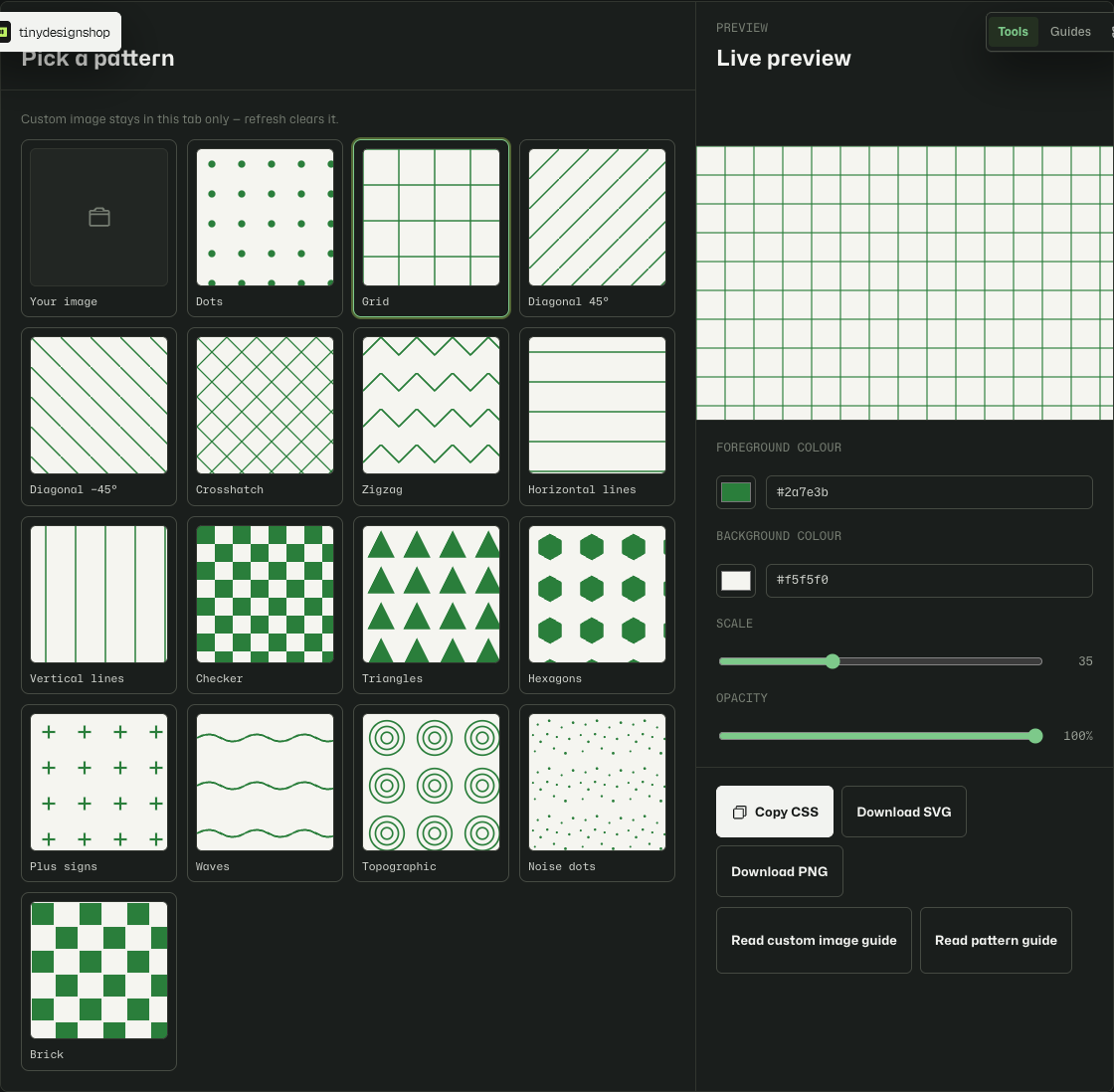
Paste CSS into a page.
The copied CSS is a single background declaration with an inline SVG data URI. Paste it into a class rule or inline style on the element that should show the pattern:
Example: add the copied line to .hero { … } or a utility class in your stylesheet. The SVG tiles seamlessly, so it works on full-width sections, cards, and hero blocks without extra markup.
Because the pattern is embedded as a data URI, there is no separate image file to host. That keeps deploys simple — one CSS paste and you are done.
Use the SVG tile as a Figma fill.
Download the SVG tile and drag it into your Figma file, or use Place image to import it. Select a frame or shape, then set the fill type to Image and pick the imported SVG.
Set the fill mode to Tile so the geometric repeat matches the tool preview. Adjust scale in Figma if you need a tighter or looser repeat than the default tile size.
This path is useful when you want the same pattern in a mockup and in production CSS — export once from Pattern Generator, use SVG in Figma and CSS on the live page.
PNG for slides and OG images.
Download PNG exports a 1600×900 raster of the current pattern with your colour and scale settings. Use it as a slide background in Keynote, Google Slides, or PowerPoint, or as a social preview image when you need a flat asset instead of live CSS.
PNG is also handy for tools that do not support SVG fills or data-URI backgrounds — email templates, PDF exports, and thumbnail generators often need a single image file.
Browser-local only.
Pattern Generator runs entirely in your browser. Colours, scale, and exports are computed on your device — nothing is uploaded to Tiny Design Shop or a third-party server. Close the tab and your session is gone.