before you upload
Use one complete HTML file.
The tool works best when your deck includes its styles and slide behavior in the file. It preserves the uploaded HTML instead of rebuilding the slides.
Supported now
- One self-contained
.htmlor.htmfile. - Frontend Slides-style decks with inline CSS/JS, fixed 16:9 stages, and slide classes such as
.deck-viewport,.deck-stage, and.slide. - Single-file HTML decks from coding agents, exported web slides, or custom static slide pages.
- Static decks using sections, articles,
.slide, ordata-slidemarkup.
Convert first
.pptx, Keynote, PDF, image-only decks, or Google Slides links.- Zip files, folders, or multi-file web exports with separate asset directories.
- Hosted URLs. Upload the actual HTML file instead.
- Decks that depend on local assets that are not embedded in the HTML.
Frontend Slides is a good match because it creates zero-dependency, single-HTML presentations with inline CSS and JavaScript. The current file limit is 2 MB. Empty files, non-HTML files, and oversized files are blocked.
step by step
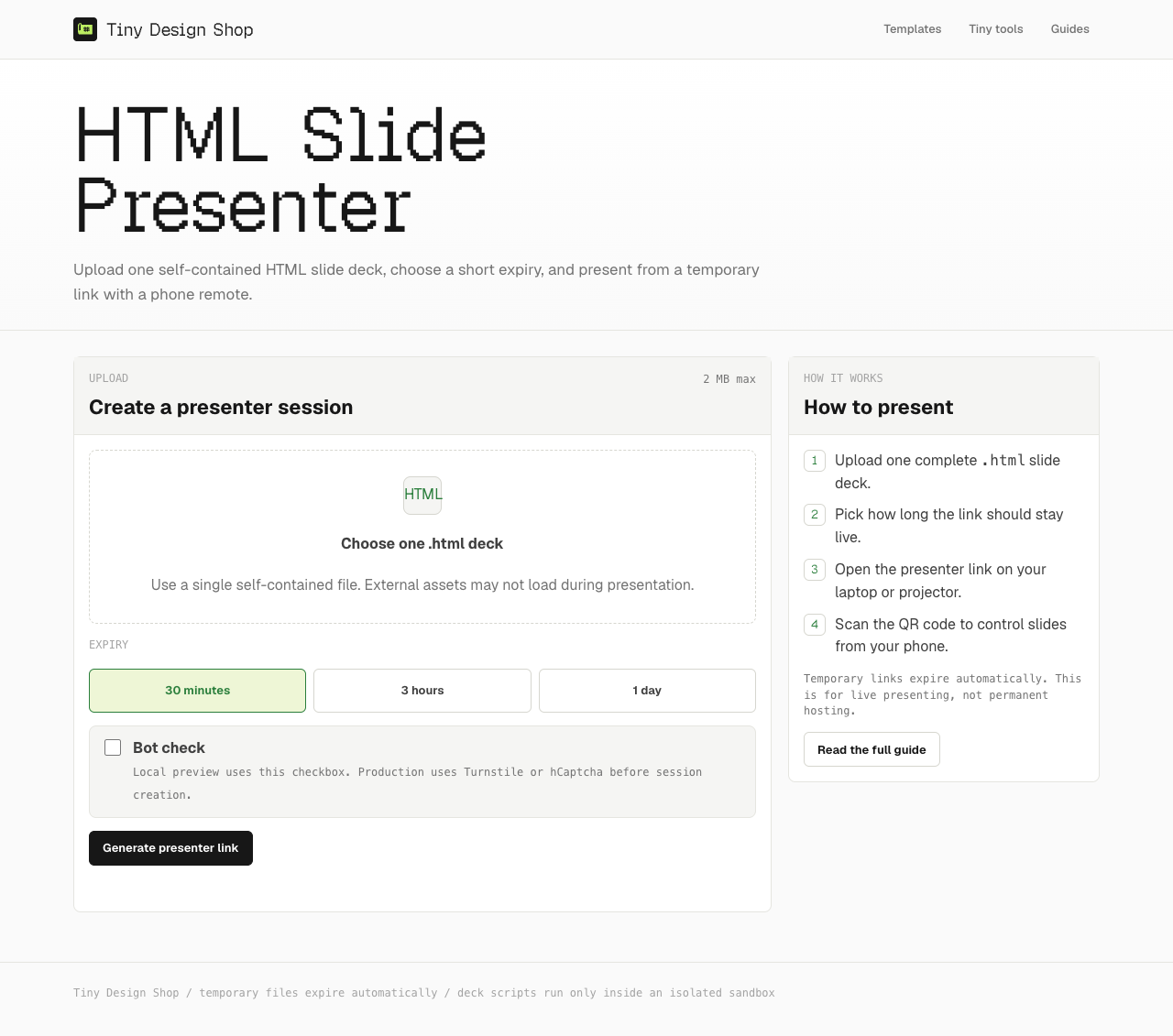
Create the presenter and remote links.
- Open HTML Slide Presenter.
- Choose your `.html` deck.
- Pick an expiry: 30 minutes, 3 hours, or 1 day.
- Complete the bot check.
- Generate the presenter link.
- Open the presenter link on your laptop or projector.
- Scan the QR code with your phone to open the remote.
presenter controls
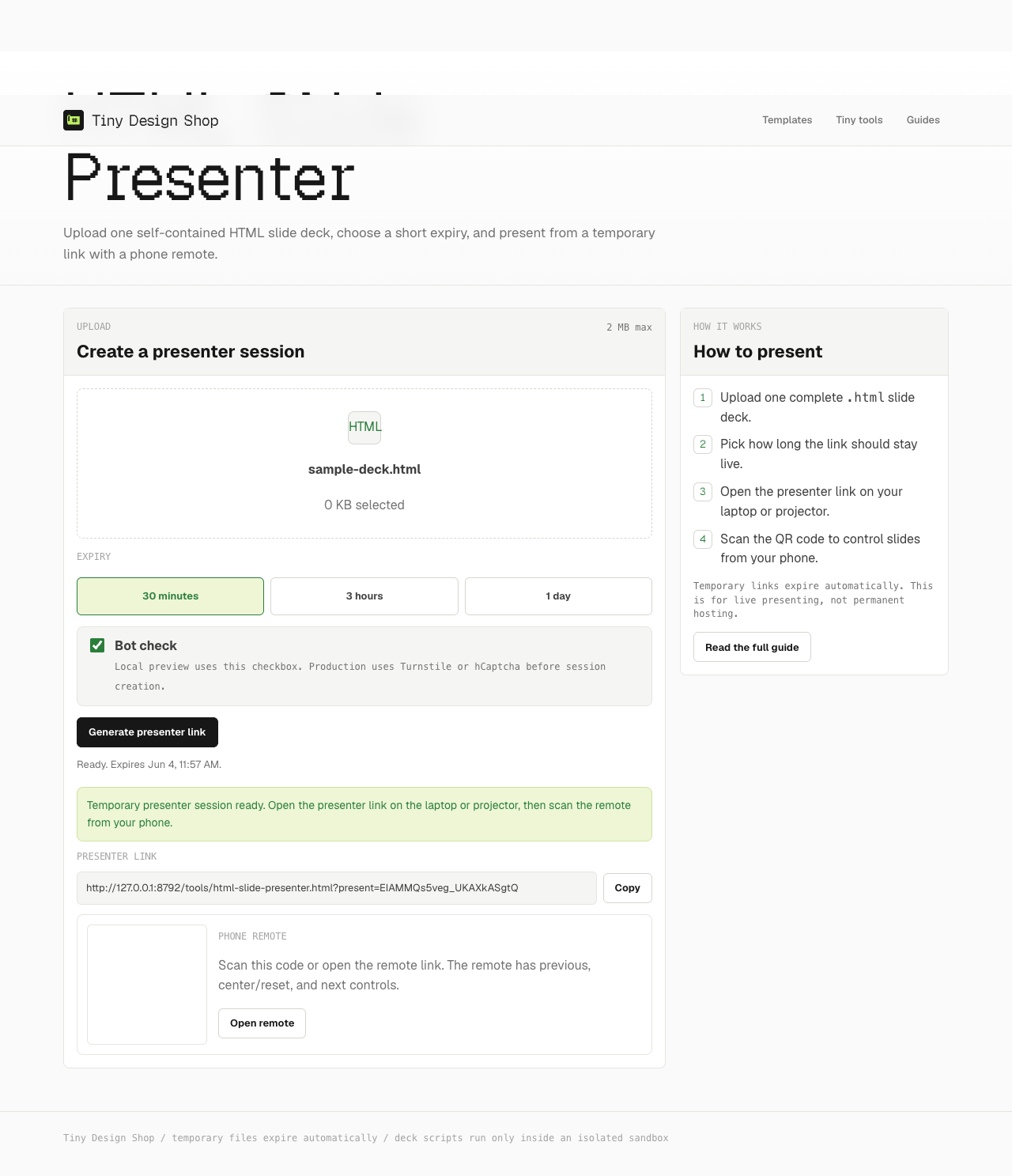
Present from the display.
Use the on-screen previous, center/reset, and next buttons. You can also use the left and right arrow keys. The control overlay stays small so your deck remains the focus.
phone remote
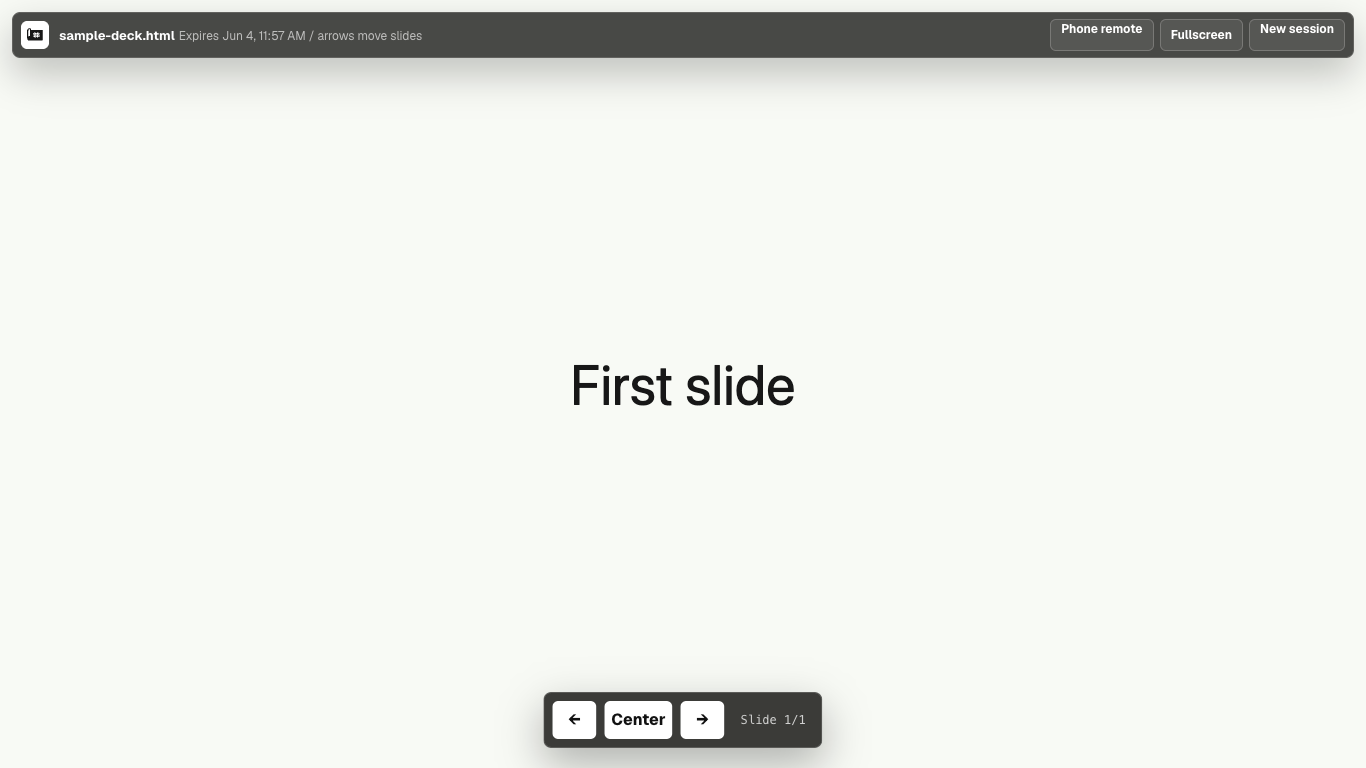
Control slides from your phone.
The phone remote has three large controls: previous, center/reset, and next. It works without login and only controls the temporary session it was created for.
expiry
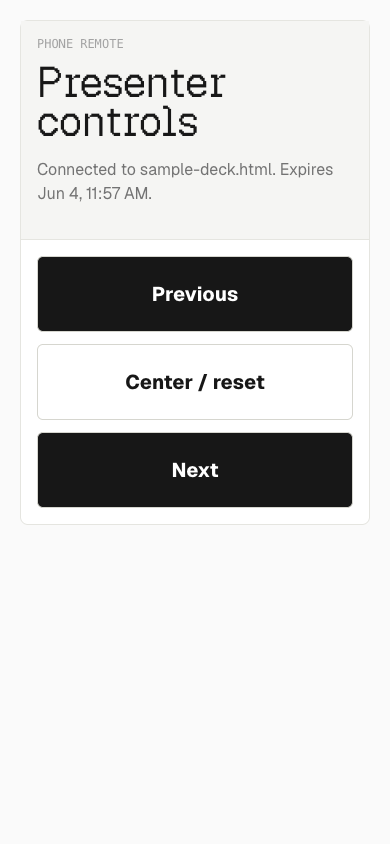
Temporary links expire automatically.
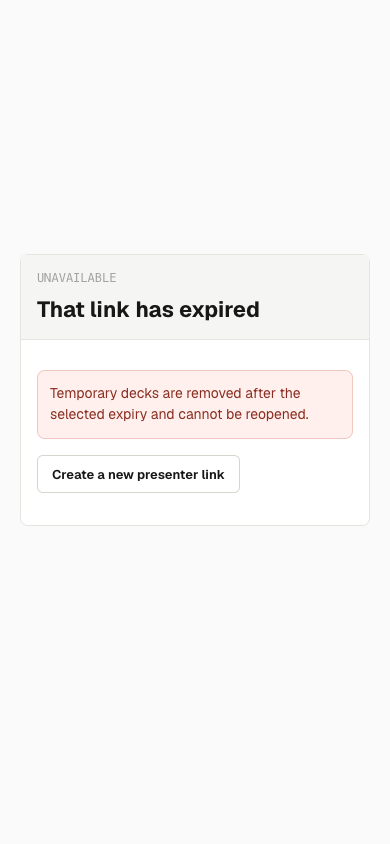
Your deck expires after the time you choose. After expiry, the presenter link and phone remote stop working. Upload again to create a new temporary session.
troubleshooting
If something looks off.
- If slides look wrong, make sure the deck is a complete HTML file and includes its important styles.
- If the remote does not move slides, keep the presenter tab open on the display and try the arrow keys once.
- If the link expired, upload the deck again.
privacy and safety
Temporary, sandboxed presentation sessions.
Uploaded decks are temporary. Deck scripts run only inside an isolated sandboxed iframe and cannot read the Tiny Design Shop page, cookies, or local storage.