before you start
Use an image file.
Secure Photo Blur works with common image files. Use it for photos, screenshots, exported receipts, profile images, or UI captures.
Supported now
.png,.jpg,.jpeg, and.webpfiles.- Photos from your camera roll.
- Screenshots from your desktop or phone.
- Images copied to your clipboard.
Convert first
- PDFs, HEIC/HEIF files, SVGs, and videos.
- Web links or cloud-drive links.
- Zip files or folders.
- Batches of images. Edit one image at a time.
step by step
Blur the parts you want to hide.
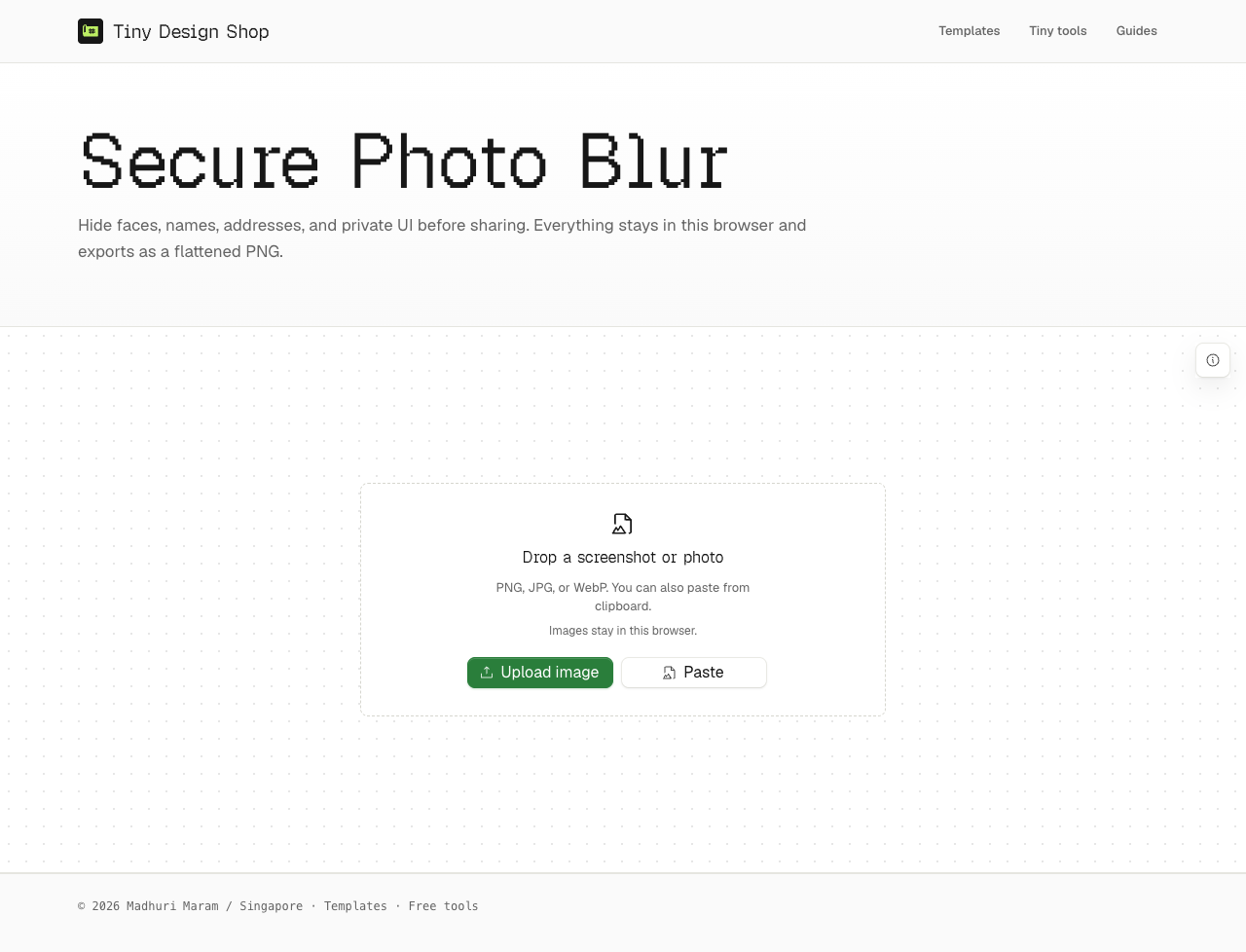
- Open Secure Photo Blur.
- Upload, drop, or paste an image.
- Choose Rectangle or Circle blur after the image loads.
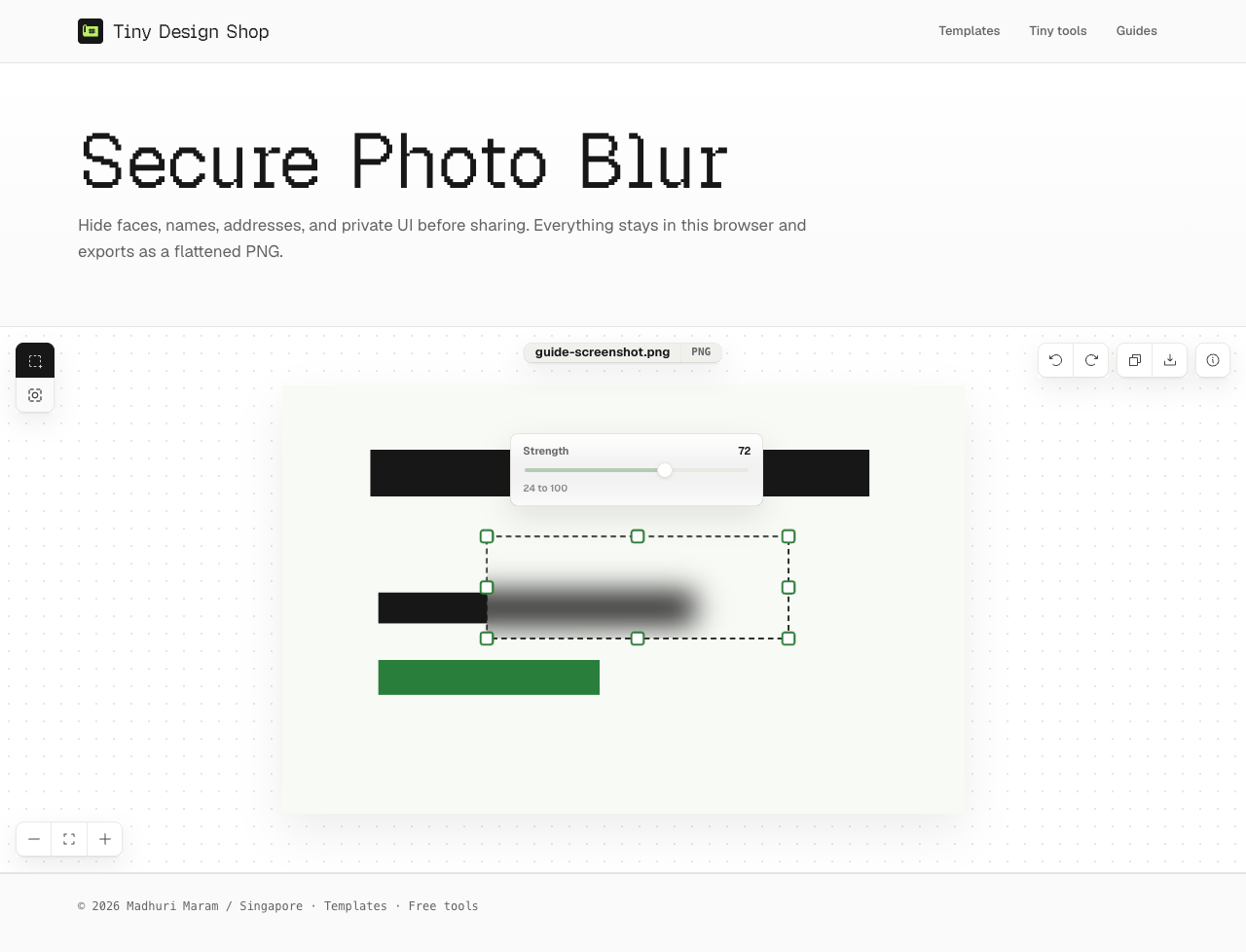
- Drag over faces, text, passwords, addresses, or anything else you do not want visible.
- Select a region to move it, resize it with handles, or adjust its strength.
- Use undo or reset if you need to fix a region.
- Copy the flattened image or download it as a PNG.
blur shape
Choose the shape that fits the detail.
Use Rectangle for text blocks, addresses, and interface details. Use Circle for faces, profile photos, or round objects.
export
Copy or download a flattened result.
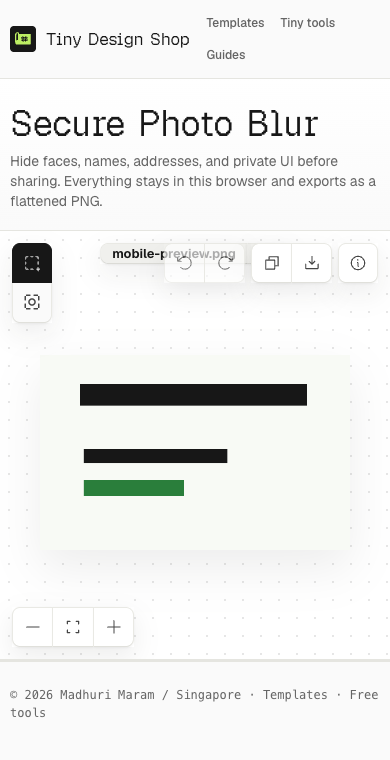
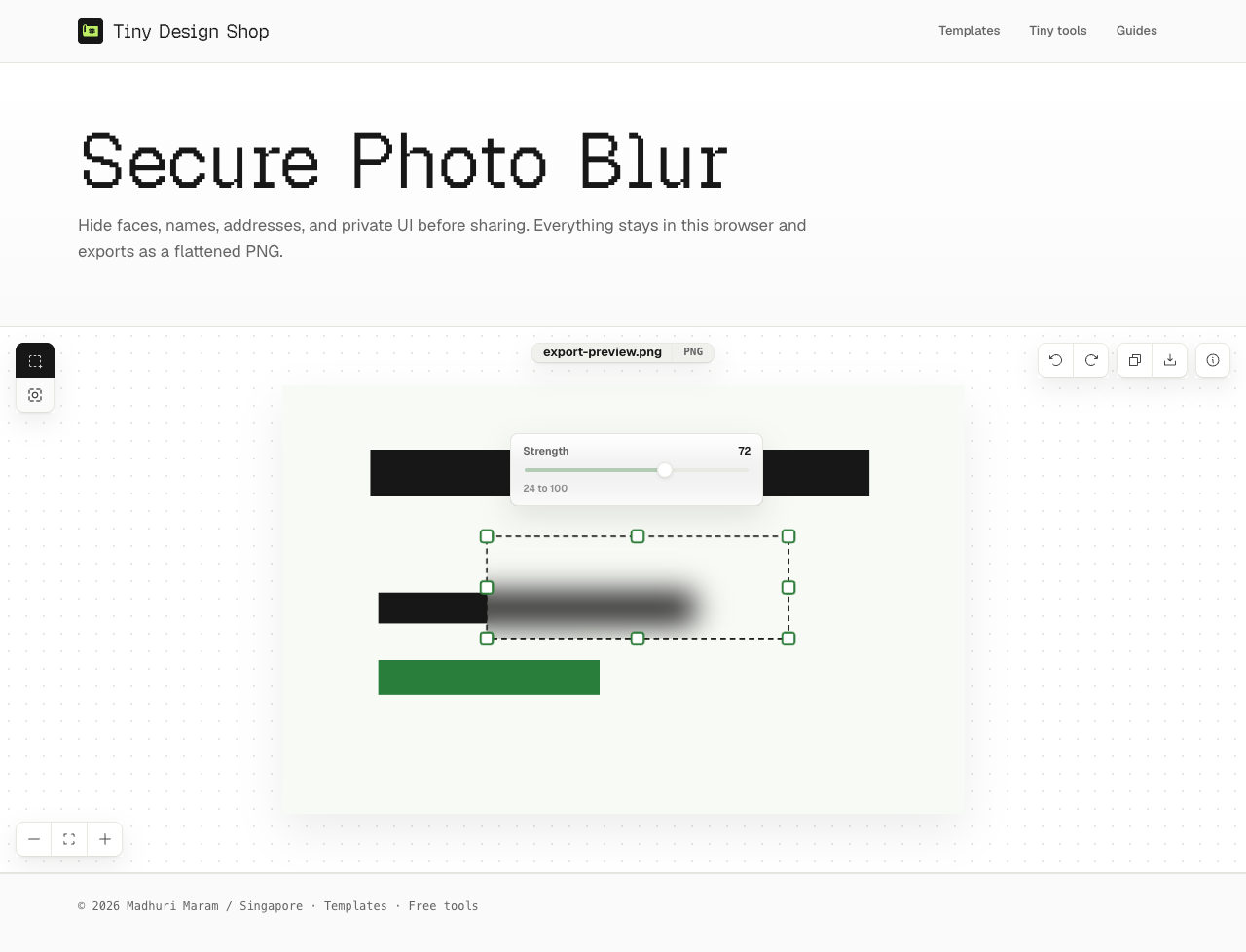
Copy Image places a flattened PNG on the clipboard when the browser supports image copy. Download PNG saves a new image with the blur baked into the pixels. Keep the original file if you may need an unblurred copy later.
-secure-blur added.troubleshooting
If something looks off.
- If the file does not load, convert it to PNG, JPG, or WebP first.
- If a blur misses the edge, undo it and draw the region a little larger.
- If shape, zoom, copy, or download controls are missing, add an image first.
- If the strength control is missing, select a blur region.
- If clipboard paste does not work, use the upload button instead.
what stays local
Your image is processed in the browser.
The tool does not upload the source image for server-side processing. The blur work happens in the browser canvas, and copy or download output is flattened from that canvas.